Showing posts with label Clips. Show all posts

Monday, April 20, 2020

Awesome Augmented Reality with EyeJack


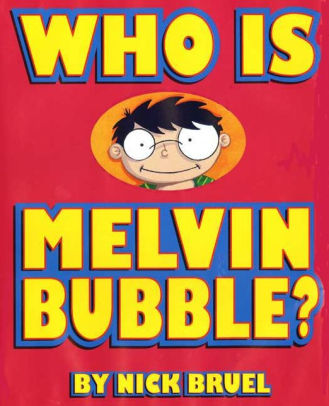
Shirley Rossman, 4th Grade Teacher at West Holt Elementary, leads her students in a creative autobiographical writing project each year. Based on the book "Who is Melvin Bubble?" by Nick Bruel, students engage in perspective writing, as each page describes themself through the eyes of a friend or family member. The final page is all about the student from the point of view of the student themself, and this is where we collaborated for an augmented reality twist to this project. 

  • Students wrote their drafts on paper and collected digital images of the family members and friends who were "telling the story."
  • I created a template file in Keynote that students could personalize with their content and eventually export as pdf for self-publishing/printing. 
  • Using the camera on an iPad, students took pictures of each of their handwritten final draft pages and added them to the appropriate placeholders in the Keynote template.
  • Each photo of the "narrator" of the page was opened in the Clips app, a cartoon filter was added, saved to camera roll, and then Airdropped to the students to add to their book file. 
  • We took photos of the students themself (one close up of their face for the cover and a full-body waving shot for the first and last pages) and used the Clips app to "cartoonize" and Airdrop as well. 
  • Using the free voice memos app each student recorded an audio narration of their final page of text (explaining who they are from their own point of view). 


Using Keynote again, students created an animation for their final page. The trigger image was their waving photo. It was added to a slide and then that slide was duplicated. Slide 1 will become your trigger image (export as png with transparent background) and Slide 2 is where you lock the image to the background and then create your animation around it. Then shapes, drawings, images, etc. were added, formatted, and then animated with motion paths and effects. Timings could be set to automatic, but students were encouraged to aim for about 30 seconds of total animation length (to match the maximum audio recording duration). When complete, the background image was unlocked and deleted, the slide background was set to transparent, and the 2nd slide was exported as a gif. 

I used the EyeJack Creator app (free download for Mac) to assemble each student's augmented reality experience for their final page. 
  1. Add trigger image (exported png from 1st Keynote slide)
  2. Upload animated gif (exported from 2nd Keynote slide)
  3. Add audio (mp3 from Voice Memos)
The EyeJack Creator app generates a QR code which is also saved and placed on the page in each students' Keynote "book."

Now, when people read their book, they use the free EyeJack app on their phone to scan that QR code and then hover over the trigger image on the page to see the animated come to life in AR. 

Each student's finished Keynote book was exported as a pdf. 
I used the softcover Tradebook option (Economy, color) on blurb.com to order a printed copy for each student and their family. (Approximately $5 each when all was said and done.)


In addition, for fun, I made a version for Mrs. Rossman and myself that had just the final page from every student's book into a class compilation of Augmented Reality student "About Me" animations. 


Tuesday, March 31, 2020

Clips app for Remote Learning Videos

Apple's free Clips app is an incredible option for recording instructional content during distance & remote learning... both for teachers and for students!

1. Download (or make sure you have the most updated version of) the Clips app from the App Store. (Note: You may have to update your iPhone or iPad to be able to install it.)

2. Learn a little about what Clips can do for you.


3. Open the Clips app and make your first video!

4. Share as you normally would with your students and/or colleagues.


Related blog posts referencing Clips: https://esu8tech.blogspot.com/search/label/Clips

Wednesday, March 27, 2019

Six Shot Stories in Science

West Holt 4th graders are at it again! Turning their writing skills into six-shot stories with Clips. This year they took on the added charge of creating their stories about relevant science topics from a list Mrs. Shirley Rossman gave them.

They used a storyboard/planning document to help them plan their video stories, making sure they used six unique camera shots when filming.


Finally, they brought their Six Word Stories to life using Clips on the iPad.


Here are the final products:
Six Shot Science Stories playlist


Friday, August 31, 2018

4 Types of Sentences... Zoom Clues in Clips!

Shirley Rossman, 4th grade teacher at West Holt Elementary, just finished teaching her students about the four types of sentences. In order to reinforce these key concepts, she had the idea to adapt the concept of "Zoom Clues" videos made in Apple's Clips app and challenge her students to demonstrate mastery.

Here is the project workflow:

  1. Students choose a "mystery object" and author FOUR sentences (one of each of the four sentence types: declarative, imperative, interrogative, and exclamatory) giving clues about the object's identity. 
  2. Students take a photo of their chosen mystery object with the iPad camera. The image should be fairly close up, but show the entire object, as this will be the view shared as the "answer" to the Zoom Clues video. 
  3. Students start a new project in Clips and add a poster image to introduce their video.
  4. From the Library, bring the photo of the mystery object into the "stage." Pinch to zoom in as far  as possible, and position the image in a way that guessing the object could be challenging. Add a label with the first clue and press the big red record button to add to the Clips project. 
  5. Zoom out just a little and/or change the viewpoint, add the second sentence clue with a new label, and record the clip. 
  6. Repeat for the last two sentence clues. 
  7. Add a conclusion slide that shows and reveals the answer.
  8. Add music and export the final video to share it!

Here is a sample "4 Types of Sentences Zoom Clues" that the West Holt 4th graders and I quickly made together, but hopefully soon they will share some more clever examples of student creativity! Check back soon!


Thursday, May 17, 2018

Six Shot Stories

Every once in awhile you find that tech integration idea that withstands the test of time. Even as the tech tools evolve and change, the learning still holds its value. "Six Shot Stories" is one of those practices for me. As an English teacher, the value of writing Six Word Memoirs created numerous educational benefits with my students. Theme, concise word choice, summarization are all skills emphasized with this simple activity. Pairing the concept with media was brilliant, and Don Goble's One Best Thing book: "Six-Word Story, Six Unique Shots" remains an invaluable resource for delivering the lesson to students.

https://itunes.apple.com/us/book/six-word-story-six-unique-shots-enhancing-writing-through/id846218165?mt=11  
Recently I worked with the 4th grade classes at West Holt Elementary to share their school's stories through this technique. And Apple's Clips app on iPad was the perfect medium to create some powerful digital stories in a short timeframe.

I began the lesson by viewing Apple's latest commercial for iPad "Homework" and asking students to count the number of cuts, in order to establish the importance of storytelling through a wide variety of camera angles and shots.

Then students paired up to author a Six-Word Story about their school, their classroom, or their daily activities as 4th graders at West Holt Elementary. It is amazing to see such powerful stories created in just six words by students!

I used Don Goble's book on iBooks to demonstrate different shots that were possible, and reminded students of some simple best practices when capturing with iPad. Instructions were emphasized that each shot should be between 3 and 5 seconds and no technique should be repeated (each shot is unique). Students used a storyboard to plan their six shots and then used the camera app to capture each on their iPad.

Finally, with only literally a few minutes of instruction on the Clips app, students assembled and edited their story. Some added all six words of text at the very end, some used one word per shot, and others split up the text in varying ways. Many were able to experiment with the other creative features of Clips as well, even within the one-class time period we had together. Each team of students exported their product to camera roll, then Airdropped to their teacher's Mac in order to upload on a YouTube channel and organize in a playlist.

What I appreciate most about this project as an ELA teacher, is the tremendous focus on concise, clear communication it entails. As a technology teacher I value the creativity and composition techniques that allow student media production to instantly be raised to the next level.

Enjoy some of West Holt Elementary's Six Shot Stories!


Wednesday, August 16, 2017

Introducing CLIPS

Last Spring Apple introduced a brand new app that gives us a fun way to build an expressive story.  Available for free for all iOS products (iPhone, iPad, etc.) it is simply called Clips.

Why learn a new tool to create digital stories?
Clips allows you to...
  • avoid the learning curve that you may encounter with many multimedia creation apps 
  • record, edit, and share all on the go (designed for a purely mobile experience)
  • add a variety of creative filters, overlays, background music and more... all with open usage rights
  • engage even the youngest of learners with its natural, intuitive workflow
When you launch the app you will see that Clips is designed for immediate recording. There are 3 sources for capturing: video, photos, or pull in anything from your camera roll/Photos Library.

*A big difference from what some of us more traditional video creators might be used to is that you have to hold the red record button for the entire duration of what you want to capture. (For example if you are bringing in a prerecorded video or photo, you have to hold the record button the entire time the video is playing, or you will only add that much to your Clips project. 

* TIP: Press and slide to the left on the red record button to lock it in recording mode. This frees up your fingers to interact with your photo or video... for example, pinch to zoom and move it around in the square frame. 


The 4 cool buttons at the top allow you to do the following:
1) Live Titles (Your speech will be typed on screen in time with you saying it (like closed captioning)
2) Filters (add fun effects to any part(s) of your video
3) Overlays (Select from pre-made 'stickers', pinch, zoom, rotate, edit text)
4) Posters (Full screen backgrounds with editable text and a bit of included animation)

*The ability to take one photo, zoom in, point and label, zoom out, and create simple, smooth pans truly elevates the media created with Clips above that of a traditional slide show.

Clips always adds new content to the end of your project, but you can easily tap, hold, and drag to move its position anywhere in your 'timeline' across the bottom. Additional editing can include editing the text from your transcribed live titles, muting audio, trimming the ends of each clip, and deleting clips.

One of the most powerful features of Clips when using it the classroom is the background music option. By clicking the music note button in the upper right of Clips, you have access to numerous soundtracks of royalty-free music. Each adjusts to match the timing of your project and even automatically fades in and out depending on pre-existing audio!

Sharing options are numerous and simple. In addition to a variety of social media outlets, each Clips projects can be saved to the camera roll for additional remixing, app smashing, and sharing.

Now, watch a Clips video about a simple project using Clips with kids!


View so many more inspiring ideas by searching the hashtag #ClassroomClips on social media sites such as Twitter, Instagram, and Facebook.