Showing posts with label keynote. Show all posts

Monday, April 20, 2020

Awesome Augmented Reality with EyeJack


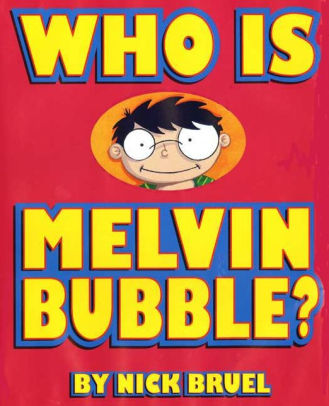
Shirley Rossman, 4th Grade Teacher at West Holt Elementary, leads her students in a creative autobiographical writing project each year. Based on the book "Who is Melvin Bubble?" by Nick Bruel, students engage in perspective writing, as each page describes themself through the eyes of a friend or family member. The final page is all about the student from the point of view of the student themself, and this is where we collaborated for an augmented reality twist to this project. 

  • Students wrote their drafts on paper and collected digital images of the family members and friends who were "telling the story."
  • I created a template file in Keynote that students could personalize with their content and eventually export as pdf for self-publishing/printing. 
  • Using the camera on an iPad, students took pictures of each of their handwritten final draft pages and added them to the appropriate placeholders in the Keynote template.
  • Each photo of the "narrator" of the page was opened in the Clips app, a cartoon filter was added, saved to camera roll, and then Airdropped to the students to add to their book file. 
  • We took photos of the students themself (one close up of their face for the cover and a full-body waving shot for the first and last pages) and used the Clips app to "cartoonize" and Airdrop as well. 
  • Using the free voice memos app each student recorded an audio narration of their final page of text (explaining who they are from their own point of view). 


Using Keynote again, students created an animation for their final page. The trigger image was their waving photo. It was added to a slide and then that slide was duplicated. Slide 1 will become your trigger image (export as png with transparent background) and Slide 2 is where you lock the image to the background and then create your animation around it. Then shapes, drawings, images, etc. were added, formatted, and then animated with motion paths and effects. Timings could be set to automatic, but students were encouraged to aim for about 30 seconds of total animation length (to match the maximum audio recording duration). When complete, the background image was unlocked and deleted, the slide background was set to transparent, and the 2nd slide was exported as a gif. 

I used the EyeJack Creator app (free download for Mac) to assemble each student's augmented reality experience for their final page. 
  1. Add trigger image (exported png from 1st Keynote slide)
  2. Upload animated gif (exported from 2nd Keynote slide)
  3. Add audio (mp3 from Voice Memos)
The EyeJack Creator app generates a QR code which is also saved and placed on the page in each students' Keynote "book."

Now, when people read their book, they use the free EyeJack app on their phone to scan that QR code and then hover over the trigger image on the page to see the animated come to life in AR. 

Each student's finished Keynote book was exported as a pdf. 
I used the softcover Tradebook option (Economy, color) on blurb.com to order a printed copy for each student and their family. (Approximately $5 each when all was said and done.)


In addition, for fun, I made a version for Mrs. Rossman and myself that had just the final page from every student's book into a class compilation of Augmented Reality student "About Me" animations. 


Tuesday, April 14, 2020

March 17th We Knew Everything Would Be All Right: a coronavirus collaboration book project

Every year on 9/11 Mrs. Beth Laible, 2nd grade teacher at West Holt Elementary in Atkinson, Nebraska, reads to her students a was inspired by a story called “September 12th We Knew Everything Would Be All Right.” It was authored and illustrated by a first grade class from an elementary school in Missouri.


Inspired, she wrote "March 17th We Knew Everything Would Be All Right" for her second grade class during the 2020 Coronavirus pandemic and subsequent school closures. She read her version aloud to her students in one of her Facebook posts during their first week of remote learning. Then she asked her students to collaborate with her to help illustrate the pages. Her students created the illustrations for the story during their remote learning experiences at home and sent back with their weekly work to Mrs. Laible. 

Beth reached out to Katie Morrow from ESU 8 for help in printing copies of the book to give to her students as a keepsake from their 2nd grade year, cut short by the pandemic. 

In addition to printing on blurb.com, Katie created a digital version of their book. Using Keynote and iBooks Author, she enhanced the pages with digital animations to bring the story to life. Mrs. Laible recorded the audio narration in Voice Memos on her iPhone and sent to Katie to add to the pages. The digital version of the book is now published on Apple Books. 

Now, anyone with an iPhone, iPad or Mac and an Apple ID can download for free and read this beautiful story for themselves!

http://books.apple.com/us/book/id1507696114
*Note: The book is best viewed in Apple Books on iPad in portrait orientation. Tap the first page thumbnail and then swipe to each subsequent page for the media to auto-play. Enjoy this story and important message!


If not able to view on an Apple device, you can watch a screen recording of the book on my iPhone here:

Tuesday, January 7, 2020

An Elf's Key(note) to Toy Making


Considering applying to be hired as one of Santa’s elves? Complete a written application and demonstrate your toy making abilities with Keynote!

Learn some Keynote skills along the way. All it takes is your imagination and you can prove to Santa that he should hire you as his next lead Elf!

Download the Keynote file here


Enjoy some elves-in-training from Mrs. Sladek's Writing classes here:


And a sneak peek into the toy-making process of these elves:


Tuesday, October 29, 2019

Monster Character Maker

Mrs. Jenny Alder's 4th grade students at Stuart Elementary were kind enough to help me create some monster characters!

Using the brilliant activity from Laura Wright's WrightStuff Interactive, airdropped via Apple Classroom, students got right to work creating unique monster characters in Keynote. 


What resulted was a diverse conglomeration of mostly-friendly monsters, complete with name and the artist's autograph. 


Now the 4th graders will employ their creative writing skills to bring their monster characters to life in writing!


Be creative to help get 'back in the groove'!


Back to School time around ESU 8 was filled with new facilities, new personnel, and new expectations for an amazing school year. Many of the activities incorporated a hands-on activity powered by educator creativity.

The following are some of the examples. Can you think of how each activity could be modified for use in your classroom?

Creative Portraits


Expedition Map


Expedition Team Flags


Expedition Team gifs


Wormhole Challenge


Sunday, October 6, 2019

Animal Adaptations Infographics

For this year's ESU 8 Elementary Science Olympiad, activities were centered around a phenomenon. Students were scientists as they explored and experienced topics with connections to that phenomenon.

During my rotation we learned about animal adaptations and how they help animals survive. Each pair of students created an infographic in Keynote on iPad to visually share their scientific knowledge with others.

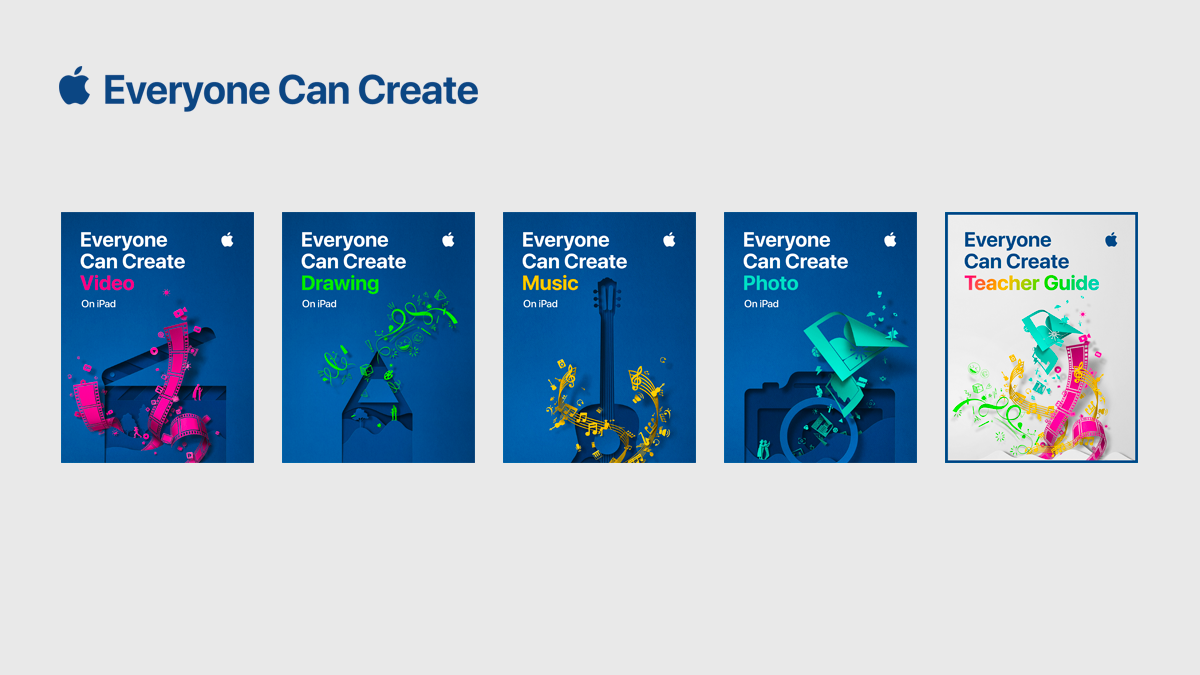
To replicate in your classroom, I recommend starting with the Everyone Can Create: Drawing guide book from Apple Books. Chapter 9 is all about infographics and contains solid examples as well as planning considerations.
Everyone Can Create Drawing
We also examined this Snowy Owl infographic example to look for critical features of an infographic as referenced in the Everyone Can Create chapter.

Next student pairs each chose an animal that interested them and researched it on World Book Online Student Edition. ESU 8 provides access to this valuable resource to all our schools and it tremendously helped with efficient and responsible research for this age group of students. Older learners could use Advanced and younger grades the Kids Edition of World Book Online. We discussed how to cite and credit the article for their researched and then navigated to the media tab to choose the image to be the center piece of their infographic. Students copied their animal's image and then opened the Keynote app to begin to create.

Prior to students arriving, I used Apple Classroom to distribute a Keynote file where I had created a custom theme with different biome backgrounds set to 50% opacity and locked in the background of the slide design options. This was mostly to maximize time for students to create.
(To make your own version simply create a new Keynote, View > Edit Master Slides, delete the existing masters other than the blank one, duplicate that and add a different background image to each, name each slide master and choose 'Done'.)

Now, all students needed to do was add a new slide (blue + on bottom left) and choose the biome that most closely matched their chosen animal. They pasted their image on the slide, resized and some used instant alpha to clean up the background. (Note: If students had access to Apple Pencil, I would encourage them to trace, color, and delete the original image in order to have a truly personalized look for the visual focus of their infographic.)


Using my example of a deer and its adaptations that I created below, we continued to go back and forth (or use Split Screen view on the iPad) between World Book Web and Keynote in order to add the following components:

  • Title
  • Name of biome
  • Map of where it lives
  • at least 3 adaptations that help it survive


Keynote skills the students learned included:
  • Adding and editing text
  • Inserting drawings
  • Using shapes, callouts, and connectors
  • Recording audio (for a few early finishers)
Also during this fast-paced 45 minute lesson we discussed critical design elements including, font, color, layout (proximity & space), and contrast. 


After all the student groups had rotated through, it was easy to collect the Keynote files through Apple Classroom and send the completed infographics back to their teachers. You can view the students' creativity and scientific knowledge in this online gallery.


Wednesday, May 8, 2019

Develop your CrEaTiViTy skills this summer!

My Wisconsin teacher friend Felecity Treptow recently shared these summer creativity calendars she created for students in her district.


Based on the Everyone Can Create guides from Apple, these self-paced activities could truly be completed by learners of ANY age... even the teacher!

https://www.apple.com/education/everyone-can-create/ 

Better yet, Felecity was kind enough to share the Keynote source file. In this way, she encourages educators to remix her calendars and customize the activities to your own learning community. How creative!

Download customizable calendar and edit in Keynote


#EveryoneCanCreate

Wednesday, April 24, 2019

Student-Created "Quiz Shows" made in Keynote

The power of non-linear hyperlinking is impressive for the learning process of students of all ages. By simply using the "Link to a slide" feature in Keynote, learners can essentially "program" a set of slides into an interactive game show.

 Sixth grade students from Mrs. Sarah Vogel's Social Studies classes at West Holt recently created this multimedia exemplars to review their unit on South America. Try your hand at answering their questions and see how you do!

  Note: Original products were created and shared with the class as "Links Only" presentations in Keynote. To make sharing on this blog easier, I converted them to Google Slides presentations, where they unfortunately lost some formatting and functionality.


 For step-by-step directions of how to replicate this activity, visit this resource.

Thursday, April 18, 2019

Biographical Infographics

Creative, unique, and informative- these English7 @oneilleagles students shared their biographical research on selected poets through #infographics built in #Keynote. An extra-special touch was each one's audio recording of a poem they added! @AppleEDU #EveryoneCanCreate #poetry


listen to Hope's audio added to her infographic:

To launch this project with students I first shared the definition of an infographic with some semi-biographical examples I found online.  I also created a starter example of one my favorite poets, our Nebraska poet, Ted Kooser. Using this exemplar, I demonstrated how to change the Keynote slide size to custom dimensions to create the "canvas" for the infographic. Then, using simple shapes and remixing  images from external sources, we began to lay out the poster design. Colors evoke mood and a strong background image with the opacity altered can demonstrate theme. An introduction to typography was explained in order to use fonts and formatting for emphasis. Finally, I showed students how to record an audio excerpt from one of their poet's most popular poems and encouraged students to create their oral readings for homework. 

Total class time spent on this project equalled three class periods: one day (before I arrived with their English teacher Mrs. Reinhardt-Sigler) for students to research their selected poet and complete a notes sheet, one day for how-to instruction and time to get started, and one day for completion of the creative infographics. 


Monday, July 30, 2018

Getting to Know Your Students: Back to School Activity Ideas with Keynote Shapes

Many teachers may remember the brilliant "All About Me" project shared on the Apple Teacher Learning Center.

In it, students use the Shapes Library in Keynote in creative ways to share all about themselves.

This is a wonderfully simple and adaptable activity for those first days back to school.

Below I have shared some additional prompts for a similar "Getting to Know You" activity.

You can download the Keynote file (for Mac or iPad) and adapt it even further here:
Getting to Know Students- Shape Collages_blank template for Keynote

Or see some finished examples for additional inspiration.

How do you plan to use and customize the incredible Shapes Library in Keynote to get to know your students this school year?

Tuesday, October 31, 2017

Coding with Keynote

Prior to teaching coding to any age of learners, it is smart to teach better communication skills. At ESU 8's recent Elementary Science Olympiad one of the student activity stations did just that. 

First we began with coding with blocks. The engineer and the builder had the exact same blocks but their workspace was separated with a divider, blocking their view of each other's creations. Instead they gave verbal "code" as instructions to each other in the attempts of replicating the exact same structure. Modifying each round with various alternations (ability for builder to ask questions, written instructions only, etc.) added additional discussion on the importance of communication in the process of science, and coding in particular. 

Activity Guide for 'Let's Communicate'


Next we moved to the computer and worked instead with digital "blocks" which were actually shapes in Apple's Keynote application on our MacBook Air laptops. Both the engineer and the builder had to pay attention to the very fine details and convey that "code" back and forth in order to replicate each other's designs. 

  1. Use basic shapes to construct an image on a blank Keynote slide.
Note: The more “complicated” the shape, the more “code” will be involved.

  1. Complete a “code sheet” with each shape’s details from the Inspector.
Blank “Code Sheets” for students: http://bit.ly/codesheets

  1. Exchange code sheets with a partner.
No peeking at each other’s screens!

  1. Using the code alone, attempt to rebuild and replicate your partner’s image on a new blank slide. Enter details into the Inspector exactly for each shape added.

  1. View each other’s original slides and share feedback with your partner.
Debug your errors.

Optional Lessons:
  • Add a theme to the challenge, such as flag designs, pumpkin carving, or monster creation.
  • Address the importance of specific communication as discrepancies arise.


    Activity Guide for 'Coding with Keynote'