Creative, unique, and informative- these English7 @oneilleagles students shared their biographical research on selected poets through #infographics built in #Keynote. An extra-special touch was each one's audio recording of a poem they added! @AppleEDU #EveryoneCanCreate #poetry
listen to Hope's audio added to her infographic:
To launch this project with students I first shared the definition of an infographic with some semi-biographical examples I found online. I also created a starter example of one my favorite poets, our Nebraska poet, Ted Kooser. Using this exemplar, I demonstrated how to change the Keynote slide size to custom dimensions to create the "canvas" for the infographic. Then, using simple shapes and remixing images from external sources, we began to lay out the poster design. Colors evoke mood and a strong background image with the opacity altered can demonstrate theme. An introduction to typography was explained in order to use fonts and formatting for emphasis. Finally, I showed students how to record an audio excerpt from one of their poet's most popular poems and encouraged students to create their oral readings for homework.
Total class time spent on this project equalled three class periods: one day (before I arrived with their English teacher Mrs. Reinhardt-Sigler) for students to research their selected poet and complete a notes sheet, one day for how-to instruction and time to get started, and one day for completion of the creative infographics.
O'Neill Elementary's 3rd Grade Reading class, under the direction of Mrs. Julie Pistulka along with help from Katie Morrow, ESU 8, recently published their latest version of an annual community history research project. This year, the creative student authors compiled and shared their information in the form of an alphabet book.
Using a Pages template, each "letter" consists of 3 pages:
1) a stanza of poetry and photo gallery on the topic
2) written report from student research
3) student-created artwork
template created in Pages and distributed to student iPads via Apple Classroom
Students added audio narration for all the text with the newest feature of Pages books - Audio Recordings.
Every year on September 8, International Literacy Day is celebrated. In conjunction with this year's celebration, AppleEDU has launched a #PagesBookChallenge. The challenge is simple. Create a digital book with your students in Apple's Pages app (free creation app for Mac or iPad). Then, simply tweet a short synopsis of the book along with its cover and tag #PagesBookChallenge.
To encourage all educators to participate here a series of short tips and recommendations for creating digital books with Pages.
1. Begin a new Pages project using the Books templates.
Tip: Use Portrait templates for primarily text-based books (so that the reader can resize the text and the pages will adjust accordingly) and Landscape for fixed layout books (where you control the exact design and layout of the pages and the reader cannot adjust).
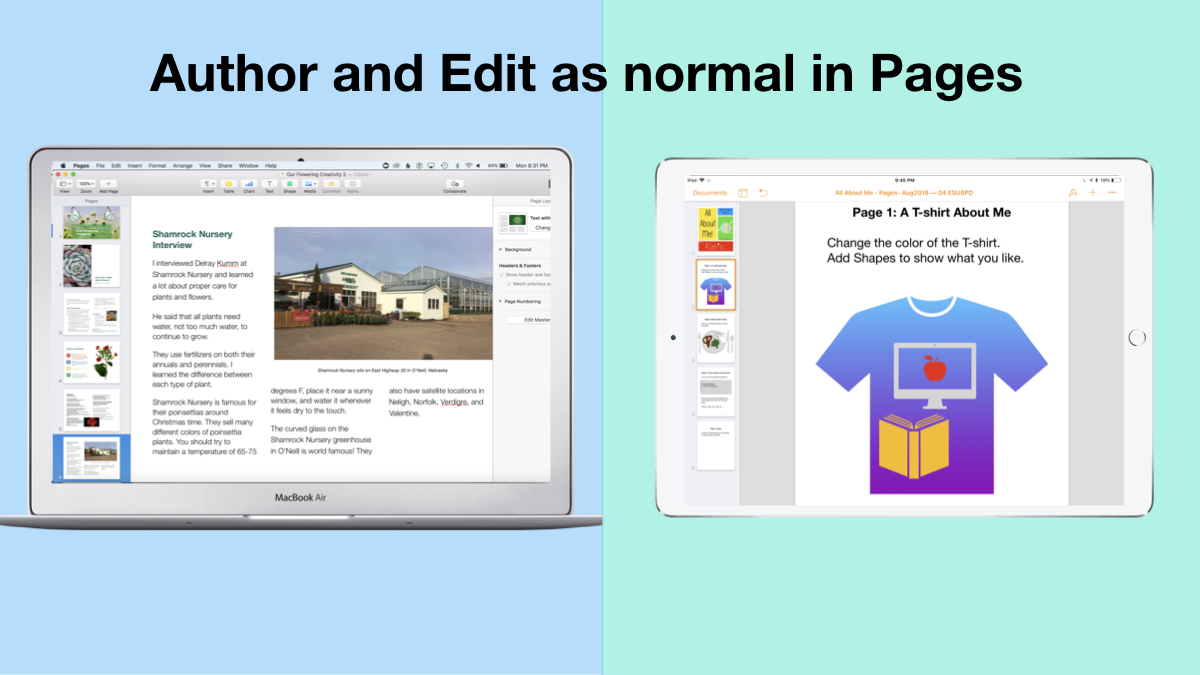
2. Author and Edit as you normally would in the Pages app.
The beauty of the iWork suite, in my opinion, is its simplicity and consistency across apps. Unleash your creativity!
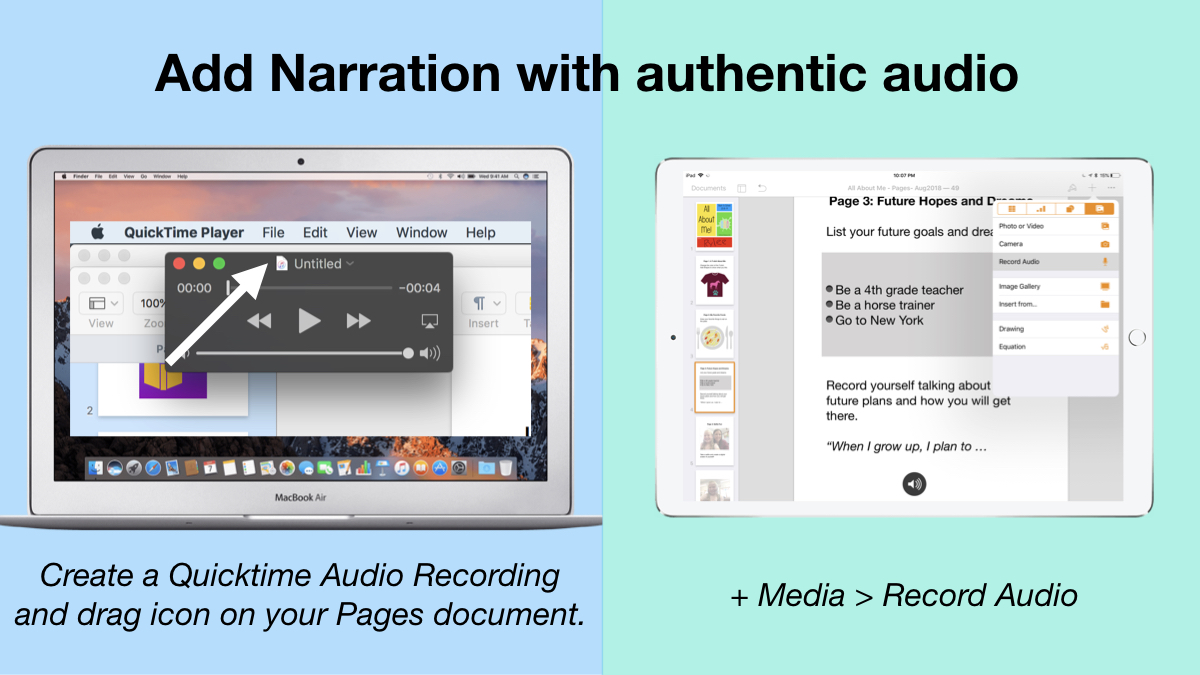
3. Add narration with authentic audio
On Mac: Create a Quicktime Audio Recording and drag icon next to filename onto your Pages document. On iPad: Tap the +, choose the Media tab, and Record Audio, then add to page.
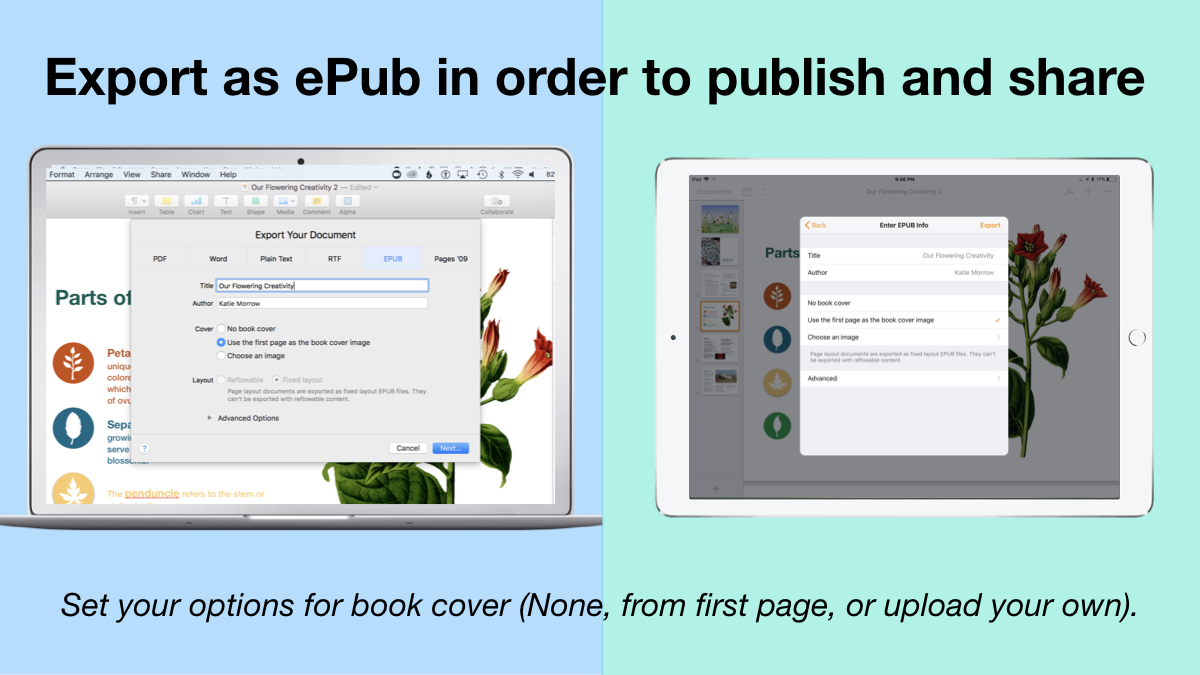
4. Export as ePub for Publishing and Sharing.
Title your book and name the author. Set your options for book cover: (None, from first page, or upload your own).
There you have it! Anyone can create a book with Pages.
Student books authored in Pages by Mrs. Troester's English 8 class, Spring 2018. (Science "Explainer" books for younger learners)
As educators the possibilities are endless when authoring books with Pages. To help learners experience authentic authoring, encourage them to work through all stages of the writing process. Here is a 60 second reminder of how to do so within the Apple ecosystem.
Finally, teachers can use Pages templates to help students focus more on the content of their books, and less on the the design of the pages. Whether for professional learning experiences, class books where every student authors a piece, or even shorter individual writing projects, simply create a Pages book as a starting template. Share the Pages document as a starting point and allow the learners to customize the content. Be sure to take advantage of the following features:
Media placeholders
Add image gallery placeholders from the Media button. This is a preset placeholder for the author to add an entire gallery of images.
Add text boxes and utilize Paragraph Styles
Text boxes are automatically ready as placeholders. Simply change the paragraph style and/or formatting.
Build your own photo/video placeholder
Add an image (or screenshot). Select the image and choose: On Mac: Format > Advanced > Define as Media Placeholder
Add pages as desired and distribute to all your budding authors.
I cannot WAIT to see what creative ideas you and your students have when creating books in Pages!
Shirley Rossman, 4th grade teacher at West Holt Elementary, just finished teaching her students about the four types of sentences. In order to reinforce these key concepts, she had the idea to adapt the concept of "Zoom Clues" videos made in Apple's Clips app and challenge her students to demonstrate mastery.
Here is the project workflow:
Students choose a "mystery object" and author FOUR sentences (one of each of the four sentence types: declarative, imperative, interrogative, and exclamatory) giving clues about the object's identity.
Students take a photo of their chosen mystery object with the iPad camera. The image should be fairly close up, but show the entire object, as this will be the view shared as the "answer" to the Zoom Clues video.
Students start a new project in Clips and add a poster image to introduce their video.
From the Library, bring the photo of the mystery object into the "stage." Pinch to zoom in as far as possible, and position the image in a way that guessing the object could be challenging. Add a label with the first clue and press the big red record button to add to the Clips project.
Zoom out just a little and/or change the viewpoint, add the second sentence clue with a new label, and record the clip.
Repeat for the last two sentence clues.
Add a conclusion slide that shows and reveals the answer.
Add music and export the final video to share it!
Here is a sample "4 Types of Sentences Zoom Clues" that the West Holt 4th graders and I quickly made together, but hopefully soon they will share some more clever examples of student creativity! Check back soon!
Learning about story arc and then applying each story element to our own writing.
This was the goal for a recent technology-infused creative writing lesson with 4th graders. This lesson is simple to replicate and adapt to a variety of educational purposes. Here is how we worked through the process:
Introduce the topic of a "dream shoe" to the students. Allow students to design their own sneaker using the printable from Quivervision. *Disclaimer: The printable and the Quiver app are both free. But in order to scan the shoe, you have buy an in-app purchase of $2.99 to unlock the Quiver Vol. 1 set. Other printables from Quivervision that ARE free would work just as well, including "Dot Day" to accompany the Peter Reynolds' book The Dot.
3. Use the Quiver app to scan student shoe creations and watch them come to life.
4. Project the Toontastic app for the class to see and use the introductory media in the app to learn about story elements and the story arc.
5. Discuss the story arc/story elements that exist in "Those Shoes." Optional: Students could use these planning pages to reinforce discussion.
6. Challenge students to use their own creative ideas to come up with a setting for their shoe, a character name, a conflict, a challenge(rising action), a climax, and a resolution/solution.These are meant to be short shoe adventures, so encourage brevity!
7. Next, using their story elements plan, students draft their shoe story on the drafting pages.
8. Now students create their shoe "character" and their scene backgrounds in the ToonTastic app in order to bring their adventure to life. Students can create their shoe and or setting(s) by:
Taking an iPad photo of their coloring page
Drawing a shoe with the built-in drawing tools in Toontastic
Use a character template in Toontastic and add features (a car can be surprisingly similar to a shoe!)
9. Students should add an audio recording from their story draft pages at each stage of the story arc. Adding narration is what truly brings the story to life! Also possible is the choice of adding background music as well.
10. To complete the project, students save the finished Shoe Stories to the camera roll. They can either Airplay the final product for the whole class to view, Airdrop to a teacher's iPad, or share in a gallery-type format where students rotate around to watch each other's stories.
We need to start looking at iPads, laptops, and Chromebooks not as technology devices, but rather literacy devices. What skills or actions can our students accomplish via the app or the project? The following two similar presentations share 10 literacy skills and simple technology tasks to develop them.
Directly related to the topic of literacy (and skill #1 in the presentation) is facilitating the writing process for our students. In this past week's Wednesday Webinar, I share a brief overview of different apps and tech tools that can be used in all stages of the writing process (not just the publishing stage).