Showing posts with label language arts. Show all posts

Monday, April 20, 2020

Awesome Augmented Reality with EyeJack


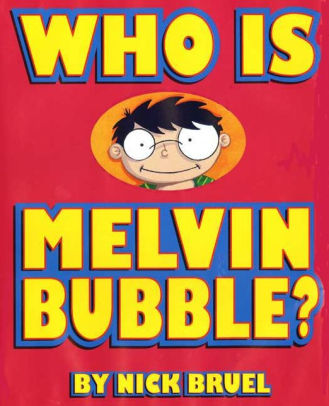
Shirley Rossman, 4th Grade Teacher at West Holt Elementary, leads her students in a creative autobiographical writing project each year. Based on the book "Who is Melvin Bubble?" by Nick Bruel, students engage in perspective writing, as each page describes themself through the eyes of a friend or family member. The final page is all about the student from the point of view of the student themself, and this is where we collaborated for an augmented reality twist to this project. 

  • Students wrote their drafts on paper and collected digital images of the family members and friends who were "telling the story."
  • I created a template file in Keynote that students could personalize with their content and eventually export as pdf for self-publishing/printing. 
  • Using the camera on an iPad, students took pictures of each of their handwritten final draft pages and added them to the appropriate placeholders in the Keynote template.
  • Each photo of the "narrator" of the page was opened in the Clips app, a cartoon filter was added, saved to camera roll, and then Airdropped to the students to add to their book file. 
  • We took photos of the students themself (one close up of their face for the cover and a full-body waving shot for the first and last pages) and used the Clips app to "cartoonize" and Airdrop as well. 
  • Using the free voice memos app each student recorded an audio narration of their final page of text (explaining who they are from their own point of view). 


Using Keynote again, students created an animation for their final page. The trigger image was their waving photo. It was added to a slide and then that slide was duplicated. Slide 1 will become your trigger image (export as png with transparent background) and Slide 2 is where you lock the image to the background and then create your animation around it. Then shapes, drawings, images, etc. were added, formatted, and then animated with motion paths and effects. Timings could be set to automatic, but students were encouraged to aim for about 30 seconds of total animation length (to match the maximum audio recording duration). When complete, the background image was unlocked and deleted, the slide background was set to transparent, and the 2nd slide was exported as a gif. 

I used the EyeJack Creator app (free download for Mac) to assemble each student's augmented reality experience for their final page. 
  1. Add trigger image (exported png from 1st Keynote slide)
  2. Upload animated gif (exported from 2nd Keynote slide)
  3. Add audio (mp3 from Voice Memos)
The EyeJack Creator app generates a QR code which is also saved and placed on the page in each students' Keynote "book."

Now, when people read their book, they use the free EyeJack app on their phone to scan that QR code and then hover over the trigger image on the page to see the animated come to life in AR. 

Each student's finished Keynote book was exported as a pdf. 
I used the softcover Tradebook option (Economy, color) on blurb.com to order a printed copy for each student and their family. (Approximately $5 each when all was said and done.)


In addition, for fun, I made a version for Mrs. Rossman and myself that had just the final page from every student's book into a class compilation of Augmented Reality student "About Me" animations. 


Wednesday, November 21, 2018

Live Loops Lexicon: A vocabulary lesson with GarageBand


For 5th and 6th graders this was their first exposure to GarageBand. As we didn't have enough time for them to work through the Everyone Can Create Music book in its entirety, I gave a brief overview of how Live Loops worked and let them experience the power of music creation via discovery mode. 

Then they randomly selected words from a "power words" vocabulary list I pre-made. Their task was to create a "Live Loops Lexicon" where the feel of the music helped bring to life the meaning of the word. After their 30-60 seconds of music was created and captured, they added a microphone track and voice recorded their word, its definition, and usage in an original sentence. 

Alternately named "Lingo Jingles" this was a simple activity that introduced students to the power of creating music with GarageBand, while at the same time broadening their vocabulary!


Student Examples:


Monday, September 3, 2018

Students Authoring Books with Pages


Every year on September 8, International Literacy Day is celebrated. In conjunction with this year's celebration, AppleEDU has launched a #PagesBookChallenge. The challenge is simple. Create a digital book with your students in Apple's Pages app (free creation app for Mac or iPad). Then, simply tweet a short synopsis of the book along with its cover and tag #PagesBookChallenge.


To encourage all educators to participate here a series of short tips and recommendations for creating digital books with Pages.

1. Begin a new Pages project using the Books templates.

Tip: Use Portrait templates for primarily text-based books (so that the reader can resize the text and the pages will adjust accordingly) and Landscape for fixed layout books (where you control the exact design and layout of the pages and the reader cannot adjust).

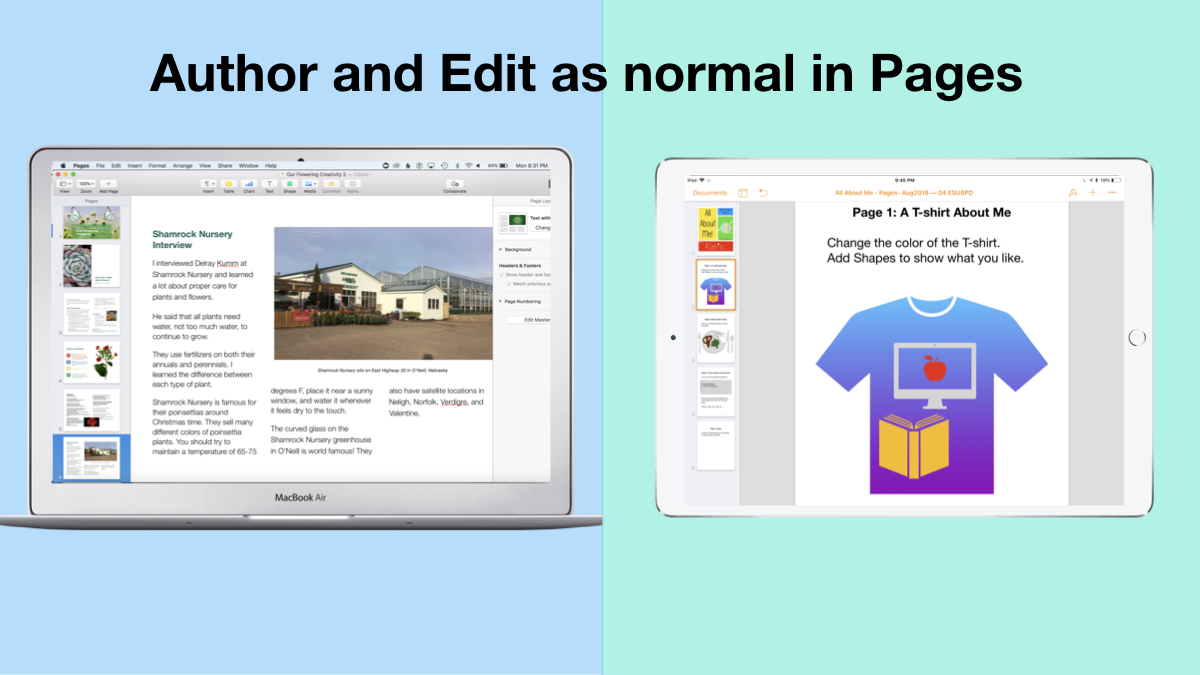
2. Author and Edit as you normally would in the Pages app. 

The beauty of the iWork suite, in my opinion, is its simplicity and consistency across apps. Unleash your creativity!

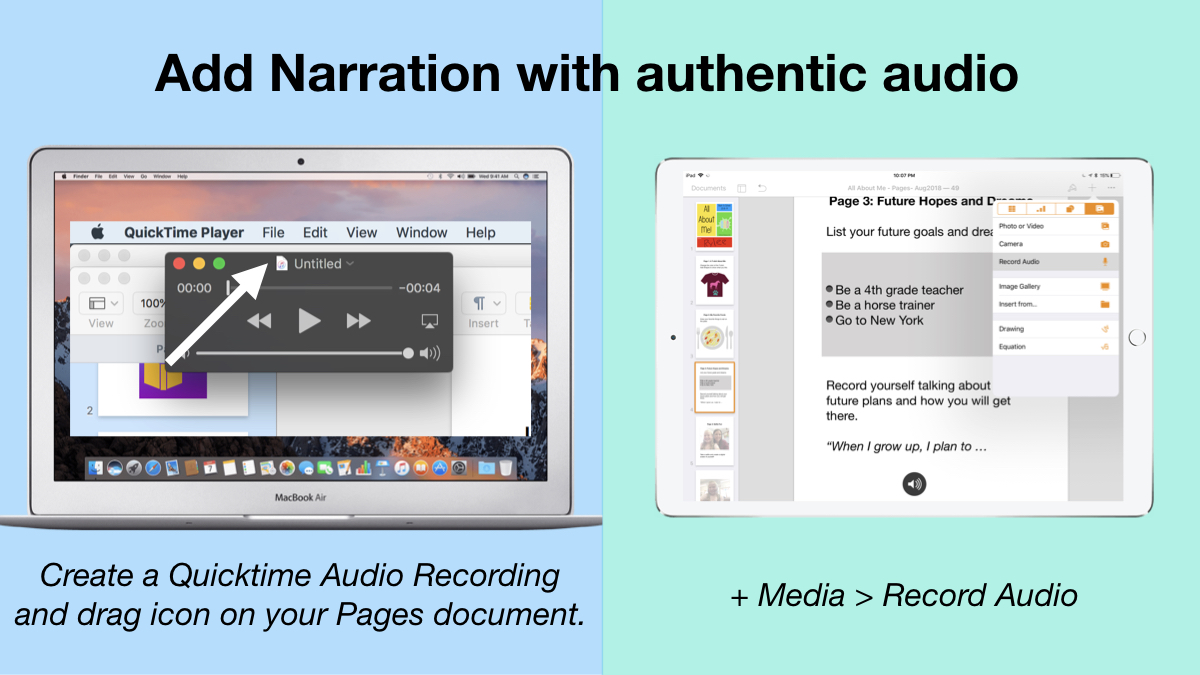
3. Add narration with authentic audio

On Mac: Create a Quicktime Audio Recording and drag icon next to filename onto your Pages document.
On iPad: Tap the +, choose the Media tab, and Record Audio, then add to page.

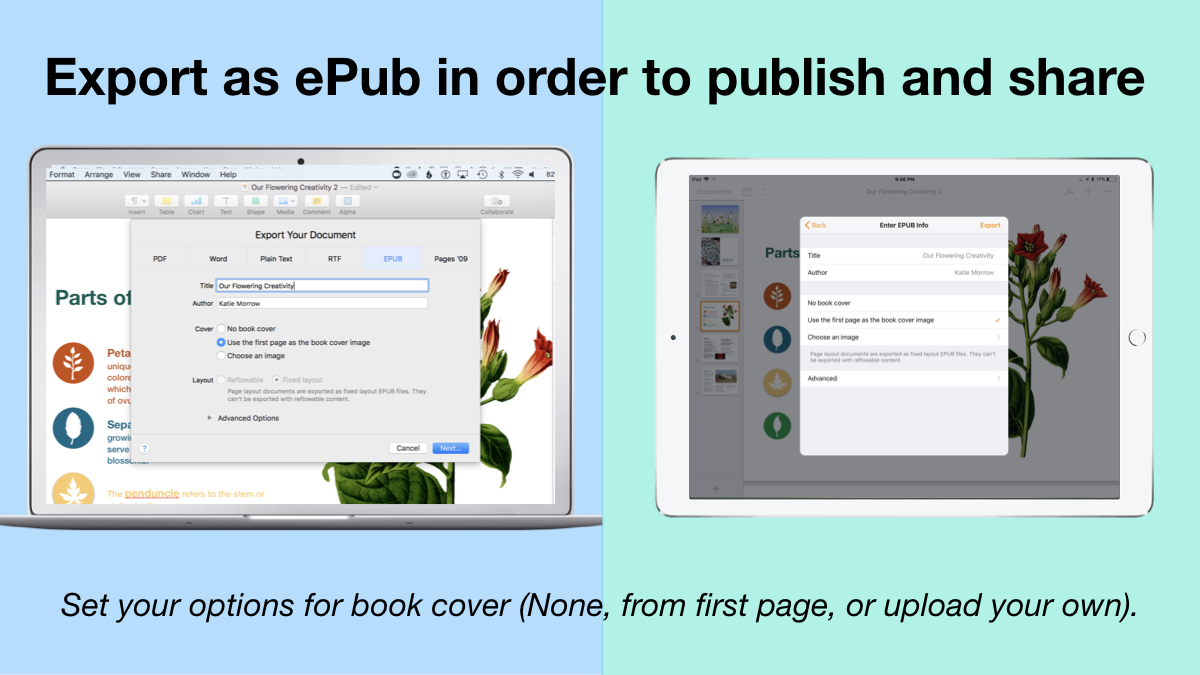
4. Export as ePub for Publishing and Sharing.

Title your book and name the author. Set your options for book cover: (None, from first page, or upload your own).
There you have it! Anyone can create a book with Pages. 


 Student books authored in Pages by Mrs. Troester's English 8 class, Spring 2018. (Science "Explainer" books for younger learners)

As educators the possibilities are endless when authoring books with Pages. To help learners experience authentic authoring, encourage them to work through all stages of the writing process. Here is a 60 second reminder of how to do so within the Apple ecosystem.


Finally, teachers can use Pages templates to help students focus more on the content of their books, and less on the the design of the pages. Whether for professional learning experiences, class books where every student authors a piece, or even shorter individual writing projects, simply create a Pages book as a starting template. Share the Pages document as a starting point and allow the learners to customize the content. Be sure to take advantage of the following features:

Media placeholders

Add image gallery placeholders from the Media button. This is a preset placeholder for the author to add an entire gallery of images.

Add text boxes and utilize Paragraph Styles

Text boxes are automatically ready as placeholders. Simply change the paragraph style and/or formatting.

Build your own photo/video placeholder

Add an image (or screenshot). Select the image and choose:
On Mac: Format > Advanced > Define as Media Placeholder

Add pages as desired and distribute to all your budding authors.  

I cannot WAIT to see what creative ideas you and your students have when creating books in Pages!


Friday, August 31, 2018

4 Types of Sentences... Zoom Clues in Clips!

Shirley Rossman, 4th grade teacher at West Holt Elementary, just finished teaching her students about the four types of sentences. In order to reinforce these key concepts, she had the idea to adapt the concept of "Zoom Clues" videos made in Apple's Clips app and challenge her students to demonstrate mastery.

Here is the project workflow:

  1. Students choose a "mystery object" and author FOUR sentences (one of each of the four sentence types: declarative, imperative, interrogative, and exclamatory) giving clues about the object's identity. 
  2. Students take a photo of their chosen mystery object with the iPad camera. The image should be fairly close up, but show the entire object, as this will be the view shared as the "answer" to the Zoom Clues video. 
  3. Students start a new project in Clips and add a poster image to introduce their video.
  4. From the Library, bring the photo of the mystery object into the "stage." Pinch to zoom in as far  as possible, and position the image in a way that guessing the object could be challenging. Add a label with the first clue and press the big red record button to add to the Clips project. 
  5. Zoom out just a little and/or change the viewpoint, add the second sentence clue with a new label, and record the clip. 
  6. Repeat for the last two sentence clues. 
  7. Add a conclusion slide that shows and reveals the answer.
  8. Add music and export the final video to share it!

Here is a sample "4 Types of Sentences Zoom Clues" that the West Holt 4th graders and I quickly made together, but hopefully soon they will share some more clever examples of student creativity! Check back soon!