Showing posts with label middle school. Show all posts

Monday, April 20, 2020

Awesome Augmented Reality with EyeJack


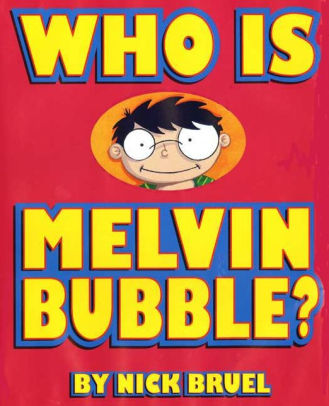
Shirley Rossman, 4th Grade Teacher at West Holt Elementary, leads her students in a creative autobiographical writing project each year. Based on the book "Who is Melvin Bubble?" by Nick Bruel, students engage in perspective writing, as each page describes themself through the eyes of a friend or family member. The final page is all about the student from the point of view of the student themself, and this is where we collaborated for an augmented reality twist to this project. 

  • Students wrote their drafts on paper and collected digital images of the family members and friends who were "telling the story."
  • I created a template file in Keynote that students could personalize with their content and eventually export as pdf for self-publishing/printing. 
  • Using the camera on an iPad, students took pictures of each of their handwritten final draft pages and added them to the appropriate placeholders in the Keynote template.
  • Each photo of the "narrator" of the page was opened in the Clips app, a cartoon filter was added, saved to camera roll, and then Airdropped to the students to add to their book file. 
  • We took photos of the students themself (one close up of their face for the cover and a full-body waving shot for the first and last pages) and used the Clips app to "cartoonize" and Airdrop as well. 
  • Using the free voice memos app each student recorded an audio narration of their final page of text (explaining who they are from their own point of view). 


Using Keynote again, students created an animation for their final page. The trigger image was their waving photo. It was added to a slide and then that slide was duplicated. Slide 1 will become your trigger image (export as png with transparent background) and Slide 2 is where you lock the image to the background and then create your animation around it. Then shapes, drawings, images, etc. were added, formatted, and then animated with motion paths and effects. Timings could be set to automatic, but students were encouraged to aim for about 30 seconds of total animation length (to match the maximum audio recording duration). When complete, the background image was unlocked and deleted, the slide background was set to transparent, and the 2nd slide was exported as a gif. 

I used the EyeJack Creator app (free download for Mac) to assemble each student's augmented reality experience for their final page. 
  1. Add trigger image (exported png from 1st Keynote slide)
  2. Upload animated gif (exported from 2nd Keynote slide)
  3. Add audio (mp3 from Voice Memos)
The EyeJack Creator app generates a QR code which is also saved and placed on the page in each students' Keynote "book."

Now, when people read their book, they use the free EyeJack app on their phone to scan that QR code and then hover over the trigger image on the page to see the animated come to life in AR. 

Each student's finished Keynote book was exported as a pdf. 
I used the softcover Tradebook option (Economy, color) on blurb.com to order a printed copy for each student and their family. (Approximately $5 each when all was said and done.)


In addition, for fun, I made a version for Mrs. Rossman and myself that had just the final page from every student's book into a class compilation of Augmented Reality student "About Me" animations. 


Sunday, November 24, 2019

Hour of Code 2019: Dance Party!

It seems like “DaNcE pArTy” is the common theme to celebrate this year’s Computer Science Education Week (otherwise known as “Hour of Code”)!

December 9-15, 2019 is the official week that is designated as this year’s Computer Science Education Week, but of course you can host an “Hour of Code” ANY TIME with these free resources:

From Code.org:


Say hello to Dance Party 2019
With the Hour of Code only a few weeks away, we’re excited to unveil the latest additions to one of our most popular activities, Dance Party! You can look forward to new backgrounds, new coding blocks, and new music from artists like Lil Nas X, Nicki Minaj, Panic! At The Disco, Jonas Brothers, Pedro Capó, and Katy Perry. There’s even a brand-new Dance Party character designed by middle schooler Genevieve P from Edison, NJ! Read more on our blog.

From Apple’s Everyone Can Code:

Excerpt from https://www.apple.com/newsroom/2019/11/apple-expands-everyone-can-code-to-bring-more-coding-resources-to-teachers-and-students/  

"New Everyone Can Code Curriculum
The new Everyone Can Code curriculum builds on existing interactive puzzles, guides and activities to make learning to code even more approachable and connected to students’ everyday lives. Everyone Can Code Puzzles is an all-new student guide to Swift Playgrounds where each chapter helps students build on what they already know, experiment with new coding concepts and creatively communicate how coding impacts their lives. A companion teacher guide supports educators in bringing coding into their classrooms with helpful ways to facilitate, deepen and assess student learning.”


This year’s Hour of Code Facilitator Guide features Dance as students program a virtual MeeBot character to dance and then make a video of it. The new Swift Playground activities to accompany this activity are featured in the Swift Playgrounds library. You could even purchase an actual robot that you could build and then program to interact with your code. Even without this purchase, students can have hours of coding fun with dance moves and the virtual robot inside of Swift Playgrounds. 


As always, feel free to contact Katie at ESU 8 if you want any help launching an Hour of Code event or ongoing Coding Club in your school. 
And so, ESU 8 schools, Let’s Dance with Code!

Sunday, October 6, 2019

Animal Adaptations Infographics

For this year's ESU 8 Elementary Science Olympiad, activities were centered around a phenomenon. Students were scientists as they explored and experienced topics with connections to that phenomenon.

During my rotation we learned about animal adaptations and how they help animals survive. Each pair of students created an infographic in Keynote on iPad to visually share their scientific knowledge with others.

To replicate in your classroom, I recommend starting with the Everyone Can Create: Drawing guide book from Apple Books. Chapter 9 is all about infographics and contains solid examples as well as planning considerations.
Everyone Can Create Drawing
We also examined this Snowy Owl infographic example to look for critical features of an infographic as referenced in the Everyone Can Create chapter.

Next student pairs each chose an animal that interested them and researched it on World Book Online Student Edition. ESU 8 provides access to this valuable resource to all our schools and it tremendously helped with efficient and responsible research for this age group of students. Older learners could use Advanced and younger grades the Kids Edition of World Book Online. We discussed how to cite and credit the article for their researched and then navigated to the media tab to choose the image to be the center piece of their infographic. Students copied their animal's image and then opened the Keynote app to begin to create.

Prior to students arriving, I used Apple Classroom to distribute a Keynote file where I had created a custom theme with different biome backgrounds set to 50% opacity and locked in the background of the slide design options. This was mostly to maximize time for students to create.

(To make your own version simply create a new Keynote, View > Edit Master Slides, delete the existing masters other than the blank one, duplicate that and add a different background image to each, name each slide master and choose 'Done'.)

Now, all students needed to do was add a new slide (blue + on bottom left) and choose the biome that most closely matched their chosen animal. They pasted their image on the slide, resized and some used instant alpha to clean up the background. (Note: If students had access to Apple Pencil, I would encourage them to trace, color, and delete the original image in order to have a truly personalized look for the visual focus of their infographic.)


Using my example of a deer and its adaptations that I created below, we continued to go back and forth (or use Split Screen view on the iPad) between World Book Web and Keynote in order to add the following components:

  • Title
  • Name of biome
  • Map of where it lives
  • at least 3 adaptations that help it survive


Keynote skills the students learned included:
  • Adding and editing text
  • Inserting drawings
  • Using shapes, callouts, and connectors
  • Recording audio (for a few early finishers)
Also during this fast-paced 45 minute lesson we discussed critical design elements including, font, color, layout (proximity & space), and contrast. 


After all the student groups had rotated through, it was easy to collect the Keynote files through Apple Classroom and send the completed infographics back to their teachers. You can view the students' creativity and scientific knowledge in this online gallery.


Tuesday, August 20, 2019

Tech Integration IGNITE!


Visit the live agenda at bit.ly/2019techignite
We recently held our annual "IGNITE" day for ESU 8 teachers to spark new ideas for technology integration in their classrooms. The following is a summary of the learning we experienced to help us "launch" a great school year!

Wormhole Challenge

Our kick-off activity was using the new green screen feature in iMovie on iPad to create examples of the "Wormhole Challenge". You can read more about how to replicate this activity on this blog post. 


Apple 'Pop Up Classroom' Workbook

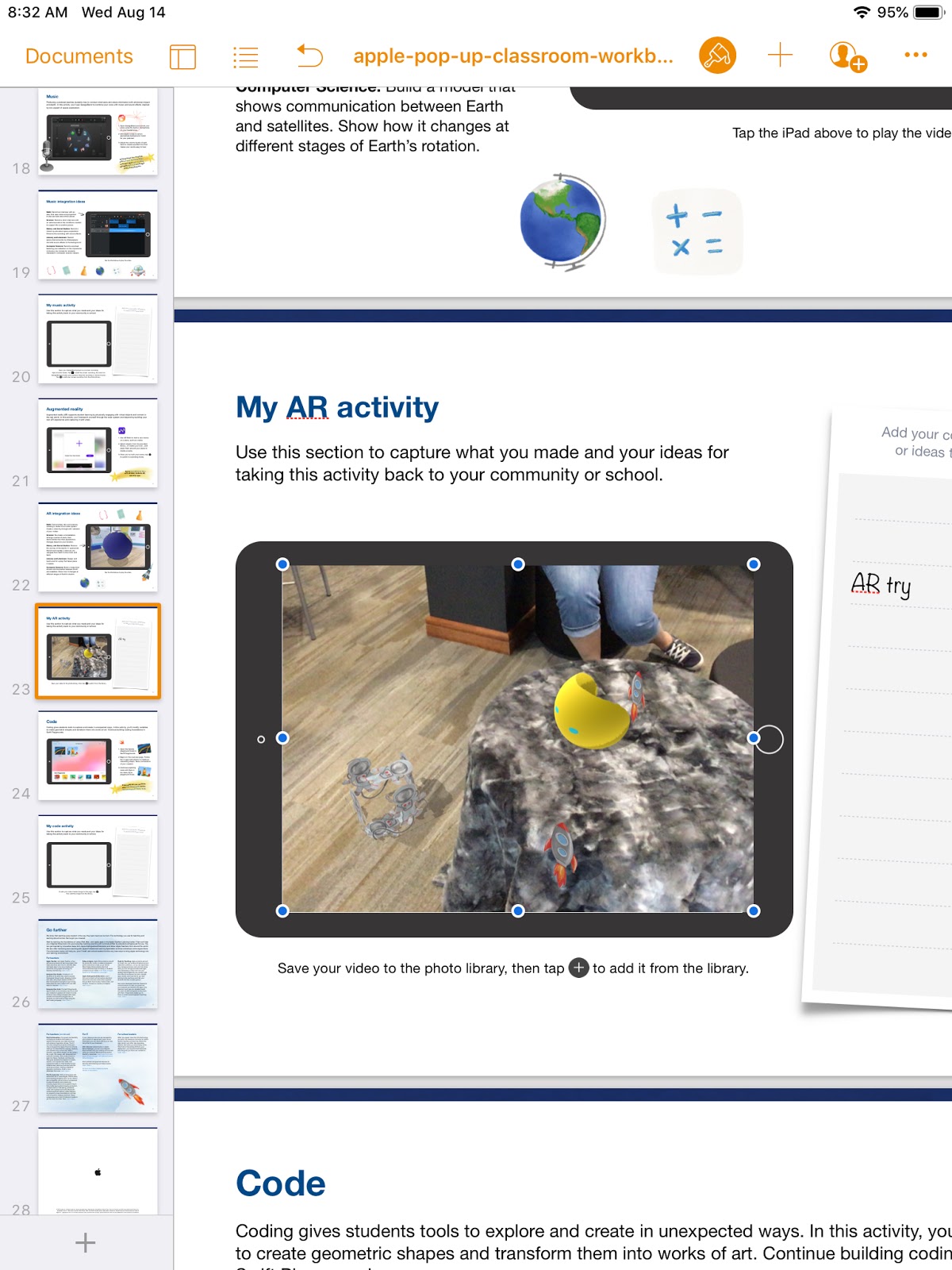
To demonstrate the possibilities of #EveryoneCanCreate with the built-in Apple apps on iPad, we worked through station activities shared at ISTE in Apple's "Pop-up Classroom" experience. Centered around a space theme, teachers were able to use a Pages workbook to try out drawing, photos, music, and augmented reality.  (Video and coding activities are also included in the workbook).  The entire resource was generously shared on the Apple Teacher Learning Center and you can download it too! Just look for the "Apple at ISTE 2019" tile.

  • Drawing: Create a hand drawn note of a concept or idea involving the moon (in the Keynote or Pages app) and bring it life by adding line draw animation.
  • Photos: Use the iPad camera's burst mode to capture a photo of a jump and then select a frame in midair. Use the markup feature to annotate and add a fact about weightlessness in outer space. 
  • Music: Create a Garageband recording for voice and interview your "friend from outer space" about life on the moon. Use the voice filters to make your audio recording sound authentic!
  • Augmented Reality (AR): Use the AR Makr app to create a 3D AR model of the earth, moon, and sun... and put it into motion!
 

ESU 8 Digital Resources

There are so many resources provided for educators through our ESU 8 Digital Resources that it is always worth a reminder! Molly presented a refresher and new features sharing about World Book online, Learn 360, SNAP to check out physical items through the Media Center, Virtual Field Trips (VFTs) and Zoom. 

Mission Control

During this portion of the workshop, we compared and contrasting two teaching tools to help you feel "in control" of your students' learning. We experienced a "getting to know you" lesson in the free versions of both ClassKick and Nearpod and then discussed differences, as well as times when both would be valuable. 
Teacher View of ClassKick lesson in progress.

Teacher View of Nearpod lesson overview.

Demo Slam

Finally, Molly and I went head-to-head with a Demo Slam, designed to showcase a few more tech tools in a fast-paced way. 


Goal-Setting

We concluded our IGNITE day by taking a look at our ESU 8 Tech Integration mission and then peruse some exemplars (including ISTE Standards, BlendED, BellevuePS ) to attempt to set individual professional goals for the upcoming school year. Don't forget that Katie and Molly would LOVE to come out to your classroom any time and assist with trying to reach those growth goals. 


One final activity...

...was one we used with West Holt teachers in their back-to-school Tech Ignite Day. It was to introduce EdPuzzle, by way of using EdPuzzle. You can check it out below. 


Wednesday, March 29, 2017

Building Relationships: Marzano Element 39 through digital storytelling

Marzano Instructional Element 39: Understanding Students' Backgrounds and Interests

This element is key to building relationships with your students-- no matter the age level or subject you teach.

The "iAM" movie project is a simple lesson idea with variations available that any teacher could try immediately.

Ask your students to create a short video trailer about themselves-- their passions, interests, and even less surface level 'getting to know you' information. Highlighted tools of choice include Adobe Spark Video and iMovie trailers (both free or readily available apps)

For full "lesson plans" and example videos, be sure to read these two articles:
If you want to build out this lesson even further, consider looking through the resources available on iTunes from Apple Distinguished Educators about "iAM: A Brand Called ME"


either as a collection:
https://itunes.apple.com/us/itunes-u/iam/id492587276?mt=10


or as an iTunes U course (if you have access to iPads):
https://itunes.apple.com/us/course/iam-a-brand-called-me/id531749219


I referenced this same Marzano Instructional Element in my ESU8 Wednesday Webinar on iMovie + Marzano. Students are almost certain to be willing to complete this activity even outside of class time and even more importantly, you will learn new insights and deepen relationships with your learners.

 The following student projects from my classroom are an example of how you can get to know your students easily through a simple digital story. Show them to your class today and challenge your students to see how creative they can be in sharing their "personal brand."