Question: My students created a iMovie for class on their Macs. I’ve had a couple of students ask how to get the movie sent to me. Any ideas?
Suggested Solution:
When they are finished in iMovie they should export their project as a file:
File > Share > File.
Because of slow upload speeds on home wifi, I would tell them to choose the smallest file size available (or at least Medium quality 720 p):
Then they will choose where the file saves and name it.
Once finished, (this will take awhile), go to where the file was shared and upload to YouTube. Every student already has a YouTube channel with their school Google account. They just need to sign into YouTube with their school email and then add/upload their video.
I think the rest will be pretty straightforward, but they will need to Publish it either as Public or Unlisted so that you can see it,
When YouTube is finished processing it, then just Share the URL of the finished video with you (via Google Classroom, most likely).
This is by far the easiest route, but if there are any issues with it I could recommend a different path.
Mrs. Shirley Rossman and several of her 4th grade students created a Halloween-themed story to share their learning about physical and chemical changes in Science.
The team brought their ideas to life with a green screen, iMovie, and extra touches with Keynote.
The video was shared at West Holt Elementary's October assembly during Jr. Husky Highlights so all could share in the learning!
Congrats, ladies, on a creative, "creepy" project!
We recently held our annual "IGNITE" day for ESU 8 teachers to spark new ideas for technology integration in their classrooms. The following is a summary of the learning we experienced to help us "launch" a great school year!
Wormhole Challenge
Our kick-off activity was using the new green screen feature in iMovie on iPad to create examples of the "Wormhole Challenge". You can read more about how to replicate this activity on this blog post.
Apple 'Pop Up Classroom' Workbook
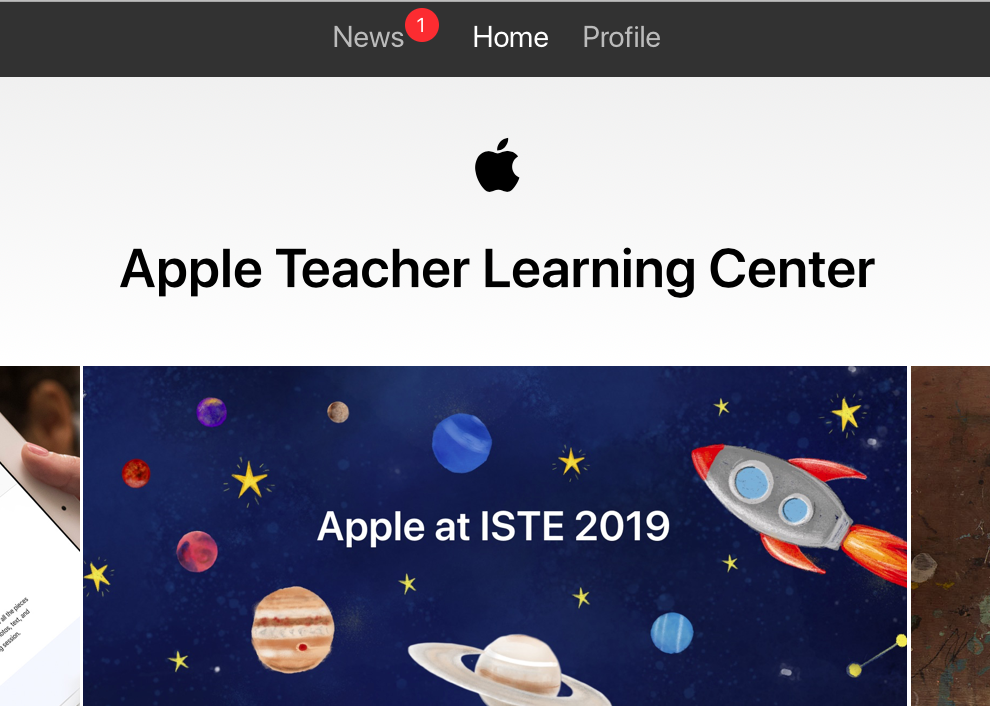
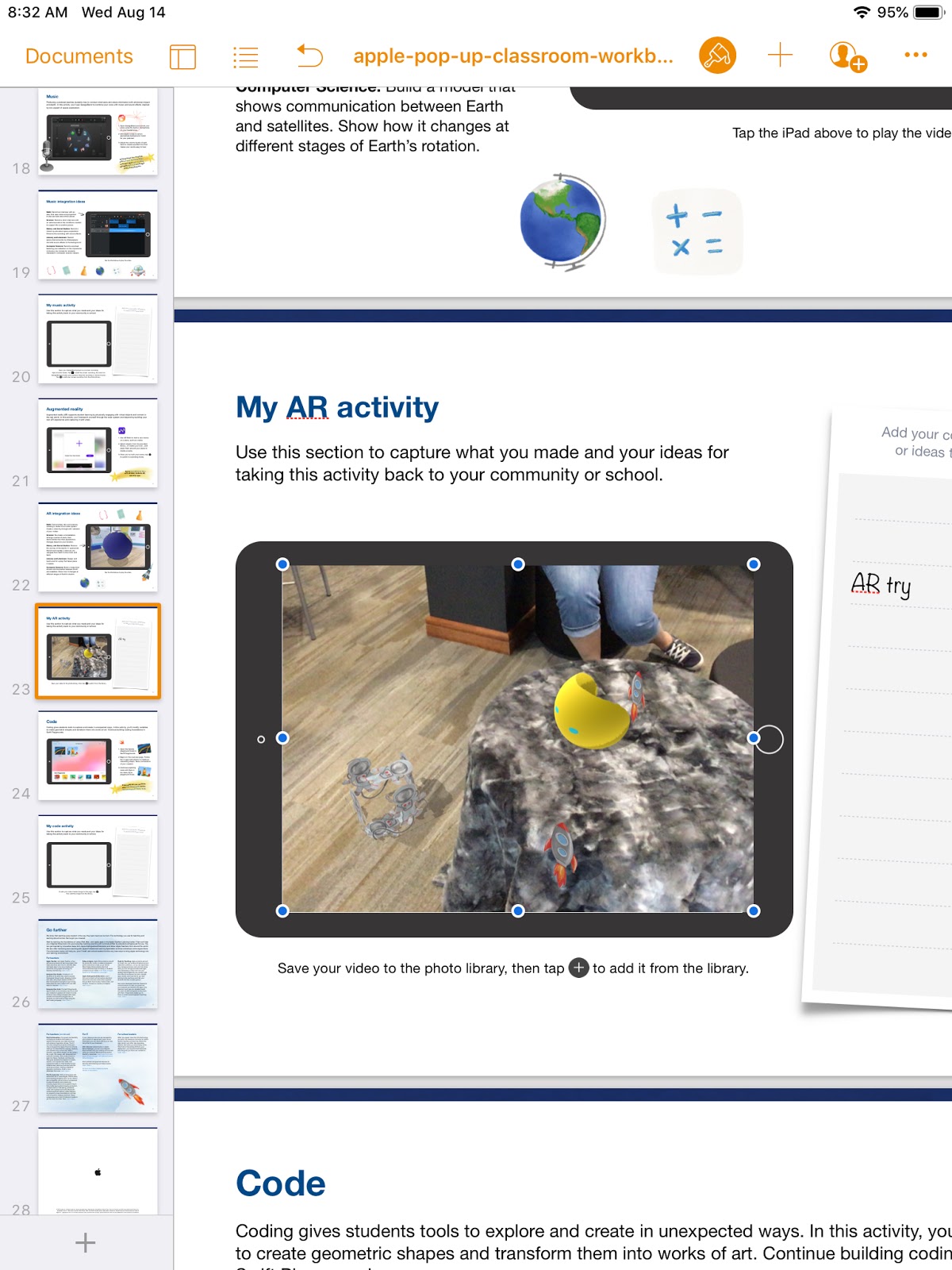
To demonstrate the possibilities of #EveryoneCanCreate with the built-in Apple apps on iPad, we worked through station activities shared at ISTE in Apple's "Pop-up Classroom" experience. Centered around a space theme, teachers were able to use a Pages workbook to try out drawing, photos, music, and augmented reality. (Video and coding activities are also included in the workbook). The entire resource was generously shared on the Apple Teacher Learning Center and you can download it too! Just look for the "Apple at ISTE 2019" tile.
Drawing: Create a hand drawn note of a concept or idea involving the moon (in the Keynote or Pages app) and bring it life by adding line draw animation.
Photos: Use the iPad camera's burst mode to capture a photo of a jump and then select a frame in midair. Use the markup feature to annotate and add a fact about weightlessness in outer space.
Music: Create a Garageband recording for voice and interview your "friend from outer space" about life on the moon. Use the voice filters to make your audio recording sound authentic!
Augmented Reality (AR): Use the AR Makr app to create a 3D AR model of the earth, moon, and sun... and put it into motion!
ESU 8 Digital Resources
There are so many resources provided for educators through our ESU 8 Digital Resources that it is always worth a reminder! Molly presented a refresher and new features sharing about World Book online, Learn 360, SNAP to check out physical items through the Media Center, Virtual Field Trips (VFTs) and Zoom.
Mission Control
During this portion of the workshop, we compared and contrasting two teaching tools to help you feel "in control" of your students' learning. We experienced a "getting to know you" lesson in the free versions of both ClassKick and Nearpod and then discussed differences, as well as times when both would be valuable.
Teacher View of ClassKick lesson in progress.
Teacher View of Nearpod lesson overview.
Demo Slam
Finally, Molly and I went head-to-head with a Demo Slam, designed to showcase a few more tech tools in a fast-paced way.
Goal-Setting
We concluded our IGNITE day by taking a look at our ESU 8 Tech Integration mission and then peruse some exemplars (includingISTE Standards, BlendED, BellevuePS ) to attempt to set individual professional goals for the upcoming school year. Don't forget that Katie and Molly would LOVE to come out to your classroom any time and assist with trying to reach those growth goals.
One final activity...
...was one we used with West Holt teachers in their back-to-school Tech Ignite Day. It was to introduce EdPuzzle, by way of using EdPuzzle. You can check it out below.
Inspired by creative educators sharing their #WormholeChallenge creations on Twitter, ESU 8 educators got out a little green play doh and tried their own hand at magically revealing something via iMovie green screen capabilities.
While the green/blue screen feature is fairly new to iMovie on iPad, it has been a part of iMovie on Mac for some time. However, it is the approach to this simple green screen project that seems new. Often we film in front of a stationary green background for effect. But in the Wormhole Challenge, you manipulate the green screen to reveal a pieces of a background a little at a time.
There are so many adaptations for this simple idea, but we used it as a simple ice breaker activity while working with groups of teachers in back-to-school PD. Here are the steps we used to accomplish the goal:
1) Use the built-in camera to record a video of your partner manipulating the green or blue play doh. Change sizes, placement, and even position further and closer to the iPad camera.
2) Open a new blank iMovie video project.
3) FIRST, add your background image (or video). In other words, what you plan to reveal.
4) SECOND, add your video of the hands manipulating the green blob.
if using iPad:
With your playhead at the beginning of your project, use the + to add the Video from your 'Recently Added' album. Once selected, use the ellipsis to select "Green/Blue Screen" from the options. Finally, don't forget to tap on the part of the video in the viewer that you want iMovie to "key" out (green, blue, or some other color you want to become invisible!).
if using Mac:
Drag your green screen video clip just ABOVE your background clip in your timeline. Then, click the Video Overlay settings button and change the dropdown menu from 'Cutaway' to 'Green/Blue Screen'. That's it! iMovie will automatically find the green or blue color here. (You can, however, do some adjusting and editing if need be.)
Amazingly, that is all there is to it! No need for additional software, apps, or extensive editing experience. Now, what will you magically reveal in your next Wormhole Challenge project?
Last week, I was delighted to find this book delivered in my mailbox from Amazon.
"If I Were A Wizard" (hardback) by Paul Hamilton
At first glance, it looks like another delightful children's book, doesn't it? In actuality, "If I Were a Wizard" by Paul Hamilton teaches readers young and old all about computational thinking and coding concepts. And it does this without intimidating terminology (and yet provides connections at the end).
When I talked with Paul this July at the 2018 Apple Distinguished Educator Institute, I was amazed by his humility. It struck a chord with me when he mentioned that humans are drawn to story, but true connections are made via characters. Thus he created Hazel. And Hazel is more than a beautiful mouse on the pages of the book or the digital swipes in iBooks. Hazel is a relatable comrade for all those who get to know her. Students can "meet" Hazel and experience her world through Augmented Reality with the free app Wizard AR. While exploring this magical world, teachers like Katie Gardner can capitalize on creative writing opportunities. Or simply enjoy an original title track performed by a beautiful young vocal wizard. Teachers can build closer relationships with Hazel by visiting the wizardcodingbook.com website and downloading the numerous free educational resources-- writing, math, art, and even more beyond just coding. It is clear to see that Paul has created more than just a coding book!
It is hard to debate the value in teaching coding concepts in today's primary classrooms. With "If I Were a Wizard" young children of all ages and backgrounds will be inspired to consider today's reality-- that they, too, can code. And I will continue to be inspired by the author's dedication to education that matters.
Every once in awhile you find that tech integration idea that withstands the test of time. Even as the tech tools evolve and change, the learning still holds its value. "Six Shot Stories" is one of those practices for me. As an English teacher, the value of writing Six Word Memoirs created numerous educational benefits with my students. Theme, concise word choice, summarization are all skills emphasized with this simple activity. Pairing the concept with media was brilliant, and Don Goble's One Best Thing book: "Six-Word Story, Six Unique Shots" remains an invaluable resource for delivering the lesson to students.
Recently I worked with the 4th grade classes at West Holt Elementary to share their school's stories through this technique. And Apple's Clips app on iPad was the perfect medium to create some powerful digital stories in a short timeframe.
I began the lesson by viewing Apple's latest commercial for iPad "Homework" and asking students to count the number of cuts, in order to establish the importance of storytelling through a wide variety of camera angles and shots.
Then students paired up to author a Six-Word Story about their school, their classroom, or their daily activities as 4th graders at West Holt Elementary. It is amazing to see such powerful stories created in just six words by students!
I used Don Goble's book on iBooks to demonstrate different shots that were possible, and reminded students of some simple best practices when capturing with iPad. Instructions were emphasized that each shot should be between 3 and 5 seconds and no technique should be repeated (each shot is unique). Students used a storyboard to plan their six shots and then used the camera app to capture each on their iPad.
Finally, with only literally a few minutes of instruction on the Clips app, students assembled and edited their story. Some added all six words of text at the very end, some used one word per shot, and others split up the text in varying ways. Many were able to experiment with the other creative features of Clips as well, even within the one-class time period we had together. Each team of students exported their product to camera roll, then Airdropped to their teacher's Mac in order to upload on a YouTube channel and organize in a playlist.
What I appreciate most about this project as an ELA teacher, is the tremendous focus on concise, clear communication it entails. As a technology teacher I value the creativity and composition techniques that allow student media production to instantly be raised to the next level.
Last Spring Apple introduced a brand new app that gives us a fun way to build an expressive story. Available for free for all iOS products (iPhone, iPad, etc.) it is simply called Clips.
Why learn a new tool to create digital stories?
Clips allows you to...
avoid the learning curve that you may encounter with many multimedia creation apps
record, edit, and share all on the go (designed for a purely mobile experience)
add a variety of creative filters, overlays, background music and more... all with open usage rights
engage even the youngest of learners with its natural, intuitive workflow
When you launch the app you will see that Clips is designed for immediate recording. There are 3 sources for capturing: video, photos, or pull in anything from your camera roll/Photos Library.
*A big difference from what some of us more traditional video creators might be used to is that you have to hold the red record button for the entire duration of what you want to capture. (For example if you are bringing in a prerecorded video or photo, you have to hold the record button the entire time the video is playing, or you will only add that much to your Clips project.
* TIP:Press and slide to the left on the red record button to lock it in recording mode. This frees up your fingers to interact with your photo or video... for example, pinch to zoom and move it around in the square frame.
The 4 cool buttons at the top allow you to do the following:
1) Live Titles (Your speech will be typed on screen in time with you saying it (like closed captioning)
2) Filters (add fun effects to any part(s) of your video
3) Overlays (Select from pre-made 'stickers', pinch, zoom, rotate, edit text)
4) Posters (Full screen backgrounds with editable text and a bit of included animation)
*The ability to take one photo, zoom in, point and label, zoom out, and create simple, smooth pans truly elevates the media created with Clips above that of a traditional slide show.
Clips always adds new content to the end of your project, but you can easily tap, hold, and drag to move its position anywhere in your 'timeline' across the bottom. Additional editing can include editing the text from your transcribed live titles, muting audio, trimming the ends of each clip, and deleting clips.
One of the most powerful features of Clips when using it the classroom is the background music option. By clicking the music note button in the upper right of Clips, you have access to numerous soundtracks of royalty-free music. Each adjusts to match the timing of your project and even automatically fades in and out depending on pre-existing audio!
Sharing options are numerous and simple. In addition to a variety of social media outlets, each Clips projects can be saved to the camera roll for additional remixing, app smashing, and sharing.
Now, watch a Clips video about a simple project using Clips with kids!
View so many more inspiring ideas by searching the hashtag #ClassroomClips on social media sites such as Twitter, Instagram, and Facebook.