Better yet, Felecity was kind enough to share the Keynote source file. In this way, she encourages educators to remix her calendars and customize the activities to your own learning community. How creative!
If you are looking for sites with copyright friendly, appropriate media for students to use for projects, we would love to share a few tips, in case you were not already familiar.
Probably the easiest way to search for filtered, copyright friendly images is simply by using advanced features of Google’s image search.
3) This gives you a variety of advanced settings for the images that Google finds. Your students can find more relevant images by choosing certain sizes, colors, or types (photographs, line art, etc.). But what is most important is under Usage Rights. Select ANY of the Usage Rights options (other than ’Not filtered by license’) and you will find that your results are fewer, but the ones that are left are marked for reuse, therefore definitely more copyright friendly.
* For best results, always save images from a webpage where they are full size and not simply the thumbnails from the Google Image Search results page.
There are many sites where the media is all filtered for reuse.
Our personal favorites for students and teachers include the following:
Also here is a poster created for an elementary teacher that they could hang in the classroom. It has QR codes to go to a few of the most popular sites so that students can scan the codes and go straight to the image-finding sites.
It's Back-to-School time again and we couldn't be more excited to kick-off another year of learning powered by Canvas in many of our classrooms!
As the supported learning management system in ESU 8, you know that you have a support team and implementation team behind you; ready and eager to help you put Canvas to work for all your learning needs.
On July 31, 2017 educators from K-12 districts and Higher Education institutions across Nebraska gathered at the Lifelong Learning Center for an exciting day of Canvas Learning. Dubbed the first-ever Nebraska Canvas Users Group conference, the event was well attended and supported strongly by Canvas Team representatives.
Get a sense of the sessions shared by viewing the Session Smackdown that we helped moderate.
But even more importantly, learn some of the new (or new-to-you) features that Canvas offers for this school year.
Google integration (Similar to Google Classroom, Canvas can create an assignment from a Google Doc that you have created, distribute it to students, complete the "make a copy" and "sharing settings" automatically for each student, and collect it so that you can grade in Speed Grader. Beautiful integration and workflow if you are already a Google Apps for Education school!
Scheduler (Appointment Groups) (Set up appointment slots for your next calendar event and allow students/teachers to self-sign up based on a wide range of criteria that you decide. Once the appointment slot is filled, others will see that and get to choose another.)
Assignment and Pages Duplication (Settings > Duplicate) (Discussions and Quizzes are coming)
On new courses, the course homepage defaults to Modules (this promotes the best practice of organizing your course by modules. You can still point to a Welcome Page/course homepage if you'd like.)
Canvas Doc Viewer automatically lets you annotate any document - highlight, comment, draw on, etc. (even more improved than Croc-a-doc feature of past!)
Blueprint courses make it easy to deploy similar course shells across your department or school site.
Teacher app (Brand new Canvas Teacher app to make course administration easier on your mobile devices!)
Additionally, the following are Canvas features that teachers are re-falling in love with this fall. Just in case you forgot they were available, try out the following:
Hide Navigation Elements for your course if you don't use certain Canvas features in that course - (Settings > Navigation tab) to clear unneeded clutter in students' course navigation bar.
Student View - view your course as your students view it to check publish settings, etc.
Speedgrader - filters, ordering, audio/video feedback, and more!
Discussions & Announcements: are MORE THAN discussions and announcements! Refresh your mind with the possibilities by viewing this Wednesday Webinar from last year:
There is so much to learn with Canvas- whether features are new or have existed for a long time. Perhaps my personal favorite source of expanding my Canvas knowledge is through their "Fast Track Video Series". These videos are short and sweet-- typically 2-3 minutes-- and do a great job of walking me through one focused topic. To see what I mean, check out this Canvas Fast Track video on student journals in Canvas, a topic several teachers have successfully used this year already!
The Canvas Community has so many resources available it is sometimes hard to know where to start. This Canvas Resources page may be just the solution.
With more and more of Nebraska's higher education institutions adopting Canvas (the University of Nebraska system has completely switched to Canvas as its LMS), there is more reason than ever before to give our students experience with the platform/learning skills while still in high school. These are exciting times for both students and teachers, and a critical key to increasing educational success is a powerful vehicle to tie all efforts together. Canvas can be that engine, and we at ESU 8 are more than happy to partner with you for successful driving.
Let's take a closer look at what sets Apple's iWork apps apart from other app suites by exploring a few skills and accompanying projects possible in Keynote.
Use Shapes Library & Drawing Tools --- to create --- Infographics
Use Magic Move --- to create --- Animated Learning
Use Links and invisible buttons --- to create --- Quiz Shows
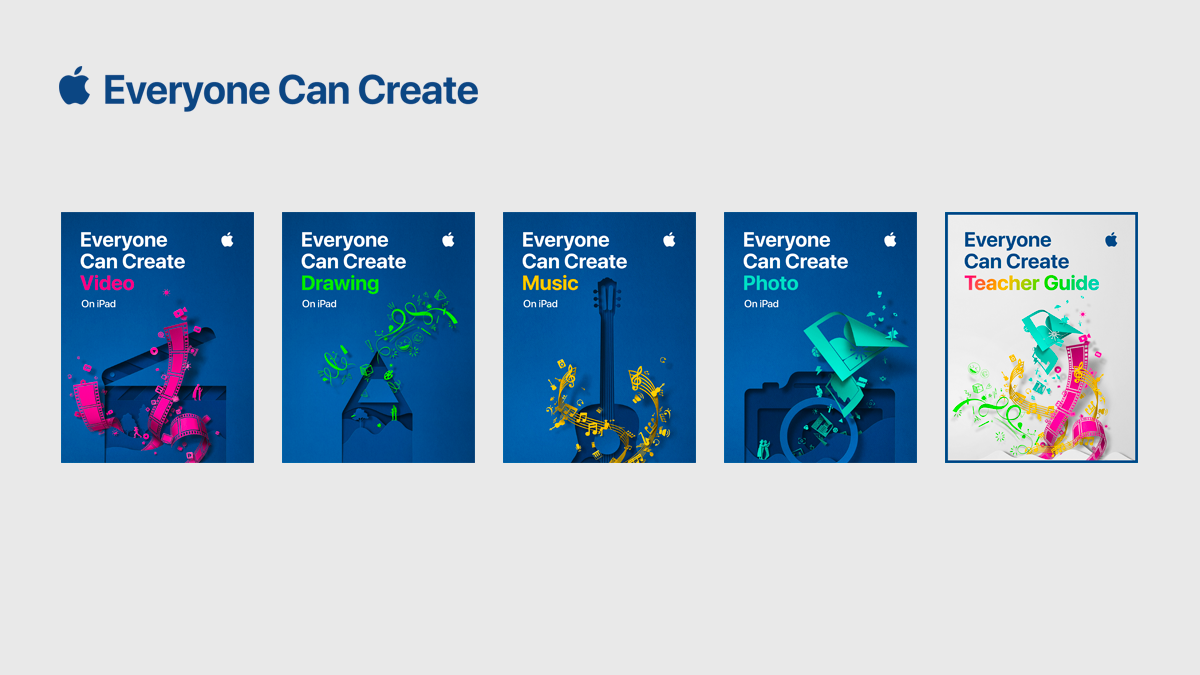
Don't hesitate to begin with the free Starter Guides from Apple Teacher:
Nebraska educators have been implementing and reaping the benefits of blended learning for quite some time. ESU 8 teachers are no different. One of our most respected experts in the field is Catlin Tucker, blended learning practitioner, guru, and published author. Her book titles, especially Blended Learning in Grades 4-12, have paved the way for many classrooms to begin blending and adapting the techniques for their own needs.
Even more valuable, however, is Catlin's experience as a practicing teacher in California. For the approximately 50 professionals who gathered together at the Lifelong Learning Center on June 9, her classroom examples and advice from the trenches were spot-on and tremendously helpful.
The crux of the day was spent experiencing blended learning's most well-known model: station rotation. We not only experience Catlin's station-rotation experience (all centered around dynamic student discussions) but also learned many implementation tips.
Catlin shared an expert look into the flipped classroom model of blended learning and ways to adapt it to leverage even more student engagement and success.
Another highlight of the day was playing a classroom vocabulary game Catlin created with her students, modeled after 'Word Sneak' from the Tonight Show.
All in all, the day was a successful blending of pedagogy and practices, interaction and inspiration. Nebraska educators who attended were excited to work on implementation goals for the upcoming school year... even this early in summer vacation!
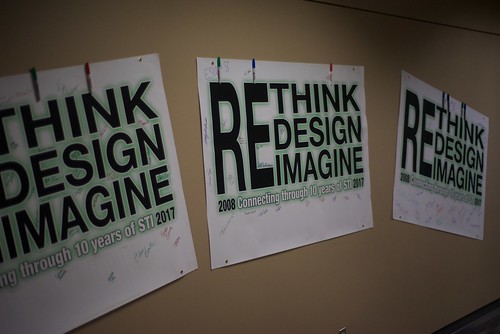
For the past decade you have been joining us just days after the conclusion of your school year to get your geek on with other Northeast Nebraska educators passionate about EdTech. And if you haven't, you are missing out! Highlights of this year's STI held May 31-June 1 at the Lifelong Learning Center in Norfolk included Matt Miller's keynote message and breakout sessions. Matt shares many of his resources at getmattsstuff.com.
Members of the NNNC STI Planning Team with 2017 Keynoter Matt Miller on day 1 of the event.
In addition, numerous regional practitioners gave of their time to share their educational technology talents with the approximately 300 participants.
You can continue to access the event's Sched site as many presenters have shared links and resources associated with their presentations, accessible even after the conference's conclusion: View the NNNC Summer Technology Institute schedule & directory.
View photo highlights from the two day event here:
Don't miss next year's event, currently scheduled for one day (Wednesday, May 30, 2018). The NNNC planning committee was excited to announce that Leslie Fisher is our confirmed keynoter.
The drawing tools available in Apple's creation apps are simple, yet powerful. Even a non-artistically inclined person can create digital graphics without even leaving the application they are in! Even more importantly, the act of creating infographics can lead to deeper understanding and longer-term learning for students.
Note: Whether demonstrating the drawing tools in Pages, Numbers, Keynote, or even iBooks Author, the process is the same. Use these ideas as starting points. What kinds of lessons do you teach that would lend themselves to students creating information-filled graphics?
First some teaching resources:
Creating Infographics is an excellent learning activity in content areas as well.
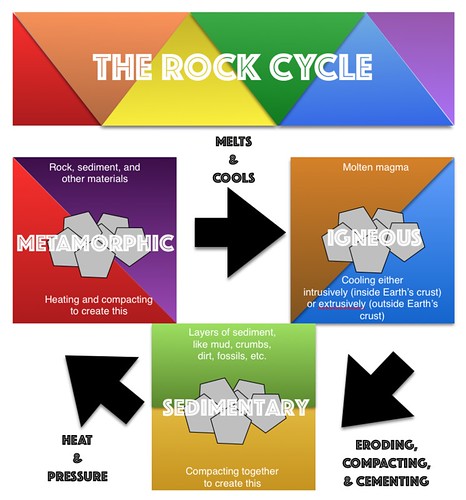
See a few student examples about the Rock Cycle from Kevin Morrow's 8th grade Science class here. Mr. Morrow commented on how visible the student creations made their understanding of the science content he had taught. In addition, he enjoyed the variety and creativity that the project allowed for.
Don't abandon printed projects... just enhance them with technology integration!
This was a driving force in a recent project I had the honor of working on with the West Holt 4th grade classes. Mrs. Shirley Rossman wanted to create a class book to demonstrate their collective knowledge of Nebraska history. And the 150th anniversary of Nebraska's statehood was the perfect backdrop.
Excitingly, she reached out to me looking for ways to infuse digital media into the printed, bound book that she envisioned as a class product. We collaborated to design an augmented reality experience for the reader, where each student's two-page spread could be brought to life with AR.
This was our process:
1. Text development
Students selected their Nebraska topics, researched them, and wrote their text narrative for their page. The pages of the book were mapped out on large classroom posters. To preserve the authentic student-authored look and feel, Mrs. Rossman had each student hand write their text onto one of the page templates to go to the Schoolmate Publishing Company that she had selected to produce the class book.
2. Create trigger images
Students created original artwork to accompany each page of text, again drawing by hand on the book template pages. I used the iPad to take a quick photo of each student's page of artwork so that I could designate each one as a trigger image for the augmented reality we planned to build in.
*Side Note: I applaud the originality and creativity of the students' hand-drawn images. While it would have been easy to find images online or even create them digitally, the authenticity of these students' illustrations makes the book extra special.
3. Create media assets
Each student had the opportunity to create at least one media asset to accentuate their topic. We talked about bringing their research "to life" and trying to enhance the content in a creative, not simply redundant way. This was truly where student choice and voice could shine. App which I demonstrated as suggestions to choose from included:
Chatterpix
Tellagami
Toontastic/Toontastic 3D
Puppet Pals 1&2
WordFoto
iMovie
DoInk Greenscreen
Nearly every app was new to the students but the definitely jumped in and learned quickly! Some student seven created multiple assets that could be selected when readers scanned their image. Mrs. Rossman did a wonderful job of coordinating additional parent volunteers, para professionals' help, and simply workspace on the days we reserved for media production.
We did post all the video assets on a YouTube playlist, just as a secondary way to showcase the students' work and creativity.
4. Blipp-building with Blippar
While Mrs. Rossman sent away the physical pages of the book to be printed and bound, I began working to develop the augmented reality interface.
I selected Blippar as our AR platform because of its reputation with education, in addition to its free price. Teachers can sign up for the Blipp-builder dashboard and create unlimited "blimps" for their classroom, completely for free. Blippar, the app which readers will use to 'scan' the pages, is free as well, and available from both the iTunes and Google Play Store.
While the blimps created with an educational account aren't "public" they can easily be viewed with a simply "campaign code." This is a 5 digit number that users enters into the settings of the app prior to scanning. We put these directions as the pregame page in our book:
The Blippar dashboard asks you to first name your campaign: West Holt 4th Grade NE History Book and then create a blipp for each student by uploading their trigger image.
To add to the interaction, you have several options. The student's media asset can be displayed on initial startup. Or you can add a "button" for the user to tap to initiate the media asset. Sometimes I used generic buttons from the Blippar library, but often I used a custom logo that I created for the project and uploaded to the Blippar library.
Various actions can be accommodated on each tap. Ones we primarily used included:
play video (either uploaded directly to Blippar or linked online)
view image gallery
go to URL
open PDF
Each blipp needs to be saved and published individually, but all can be accessed with the one campaign code in the app.
It seems there is a world of untapped potential to blips-building and I have a feeling that we only scratched the surface with this project!
The activities I mention in thevideo below are all games you can create in less than 5 minutes for your classroom. They are all available in the most recent version of SMART Notebook (16.2). You may need to check for updates, however. To do so simply launch SMART Notebook, and then click on Notebook > Check for Updates and Activation
Then just click on the Update button next to SMART Notebook, and enter your password to your Mac, and let it download and install. If you have troubles, feel free to ask Greg, Kevin, or myself to take a look.
Once you’ve done this, you are all set to try out the fabulous activities inside of the SMART Lab section. Like I mention in the video, these are a great way to create classroom review games with no additional software or website sign up required. Some you would play full class on your SMART Board and others can be accessed with student devices. My hope is that you will choose at least one of the following short videos at the page below, watch it, and immediately build a game activity for your classroom to try tomorrow.