Showing posts with label in the classroom. Show all posts

Wednesday, August 14, 2019

The Wormhole Challenge

Inspired by creative educators sharing their #WormholeChallenge creations on Twitter, ESU 8 educators got out a little green play doh and tried their own hand at magically revealing something via iMovie green screen capabilities.


While the green/blue screen feature is fairly new to iMovie on iPad, it has been a part of iMovie on Mac for some time. However, it is the approach to this simple green screen project that seems new.  Often we film in front of a stationary green background for effect. But in the Wormhole Challenge, you manipulate the green screen to reveal a pieces of a background a little at a time.

There are so many adaptations for this simple idea, but we used it as a simple ice breaker activity while working with groups of teachers in back-to-school PD. Here are the steps we used to accomplish the goal:

1) Use the built-in camera to record a video of your partner manipulating the green or blue play doh. Change sizes, placement, and even position further and closer to the iPad camera.

2) Open a new blank iMovie video project.

3) FIRST, add your background image (or video). In other words, what you plan to reveal.

4) SECOND, add your video of the hands manipulating the green blob.

  • if using iPad: 
With your playhead at the beginning of your project, use the + to add the Video from your 'Recently Added' album. Once selected, use the ellipsis to select "Green/Blue Screen" from the options. Finally, don't forget to tap on the part of the video in the viewer that you want iMovie to "key" out (green, blue, or some other color you want to become invisible!).


  • if using Mac:
Drag your green screen video clip just ABOVE your background clip in your timeline. Then, click the Video Overlay settings button and change the dropdown menu from 'Cutaway' to 'Green/Blue Screen'. That's it! iMovie will automatically find the green or blue color here. (You can, however, do some adjusting and editing if need be.)


Amazingly, that is all there is to it! No need for additional software, apps, or extensive editing experience. Now, what will you magically reveal in your next Wormhole Challenge project?



Wednesday, March 27, 2019

AMAZING Animals books written by AMAZING Authors

For this 2nd grade class, this was the very first time they had ever used Pages... let alone create a digital book. 

They were excited about becoming authors! (mostly!)

I shared a simple template with them via Apple Classroom so that had a starting point for their Amazing Animal book. 
Download and open in Pages
Our first task was to find a cover image, change the opacity, and use the drawing tools in Pages to create original artwork. When the tracing image was deleted, students were so proud of their digital artwork! 


Of course, capturing "selfies" for their "Author the Author" page was pretty fun, too!
 

Next the students added content from their research on each of the pages, enhancing with copyright-friendly photos, shapes & drawing and even image galleries.  
   

The final step was to record audio. Some students recorded a reading of their entire "report" while others recorded bits of text from multiple pages. 


Students exported as ePubs and "handed in" their books via Apple Classroom, and Mrs. Krutz collected them all. To share with family and friends, I posted the epub files on a webpage and also made a screen recording video of each book, so that an audience without an iPad could still hear the students' voices. 

All in one day's work in a second grade classroom!
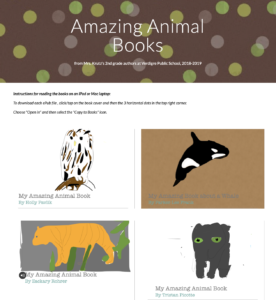
Amazing Animal Books by Verdigre 2nd grade


Thursday, January 17, 2019

Third Grade Authors publish book about their community's history

The ABCs of Our Community, O'Neill on Apple Books Store
O'Neill Elementary's 3rd Grade Reading class, under the direction of Mrs. Julie Pistulka along with help from Katie Morrow, ESU 8, recently published their latest version of an annual community history research project. This year, the creative student authors compiled and shared their information in the form of an alphabet book.

Using a Pages template, each "letter" consists of 3 pages:
1) a stanza of poetry and photo gallery on the topic
2) written report from student research
3) student-created artwork
template created in Pages and distributed to student iPads via Apple Classroom

Students added audio narration for all the text with the newest feature of Pages books - Audio Recordings.

Learn more about the community of O'Neill, Nebraska as well as student creation of digital books with Pages on iPad by downloading the book from the Apple Books Store.


Monday, September 3, 2018

Students Authoring Books with Pages


Every year on September 8, International Literacy Day is celebrated. In conjunction with this year's celebration, AppleEDU has launched a #PagesBookChallenge. The challenge is simple. Create a digital book with your students in Apple's Pages app (free creation app for Mac or iPad). Then, simply tweet a short synopsis of the book along with its cover and tag #PagesBookChallenge.


To encourage all educators to participate here a series of short tips and recommendations for creating digital books with Pages.

1. Begin a new Pages project using the Books templates.

Tip: Use Portrait templates for primarily text-based books (so that the reader can resize the text and the pages will adjust accordingly) and Landscape for fixed layout books (where you control the exact design and layout of the pages and the reader cannot adjust).

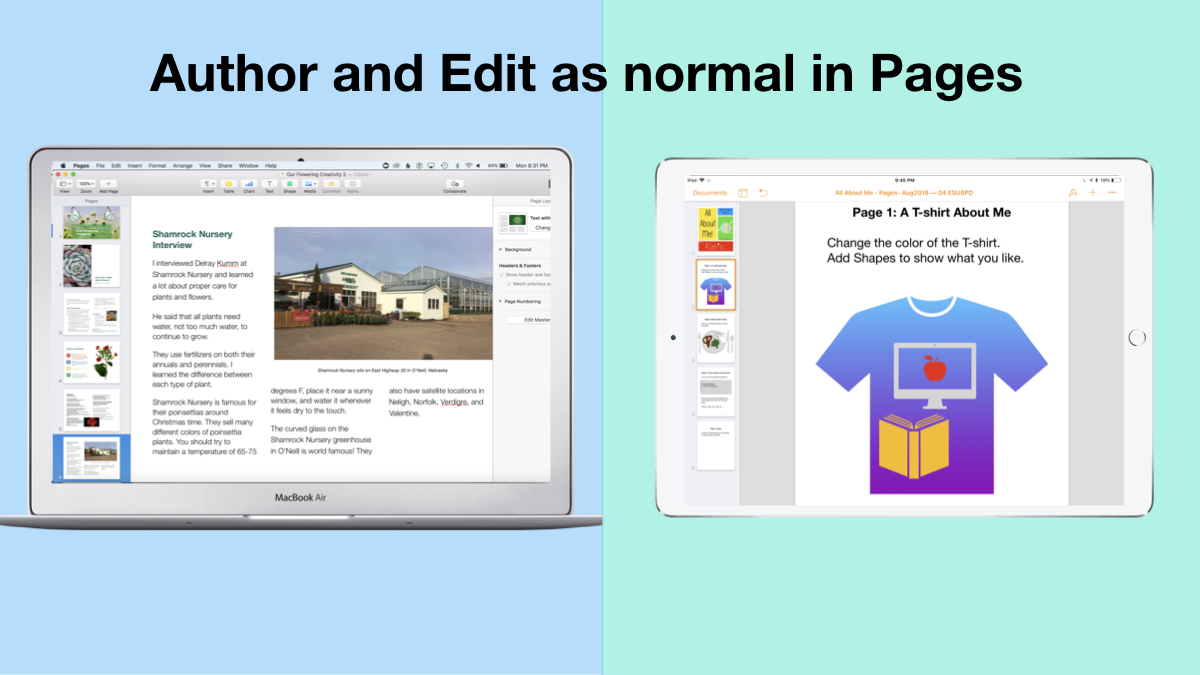
2. Author and Edit as you normally would in the Pages app. 

The beauty of the iWork suite, in my opinion, is its simplicity and consistency across apps. Unleash your creativity!

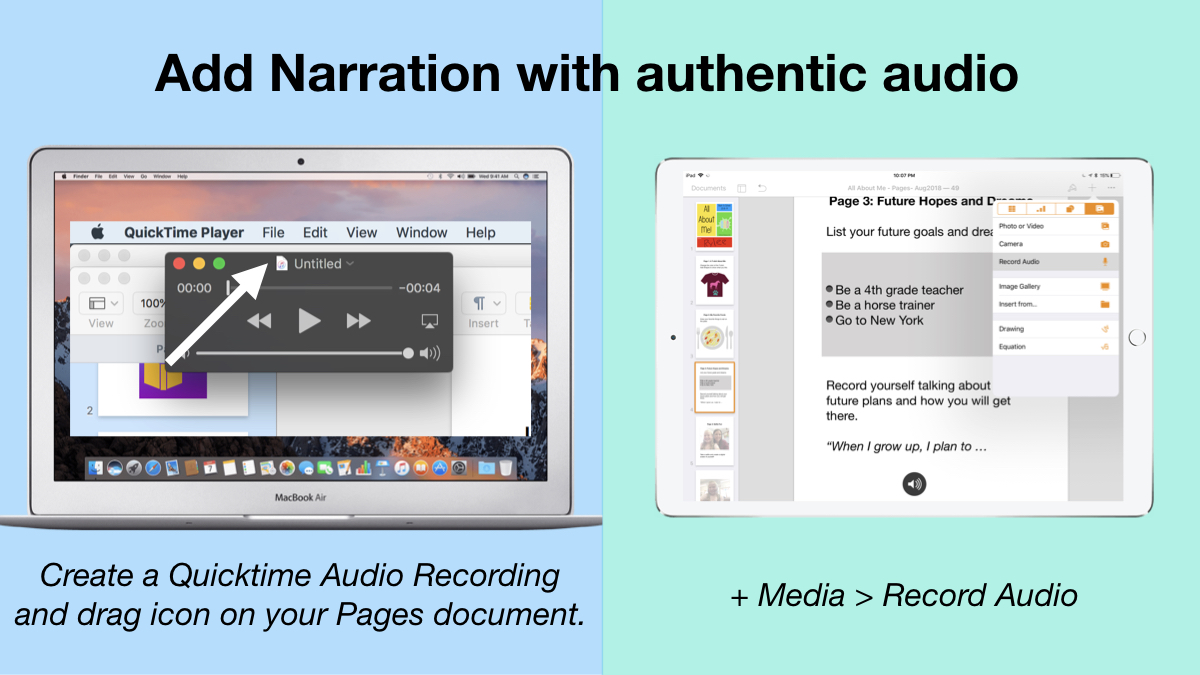
3. Add narration with authentic audio

On Mac: Create a Quicktime Audio Recording and drag icon next to filename onto your Pages document.
On iPad: Tap the +, choose the Media tab, and Record Audio, then add to page.

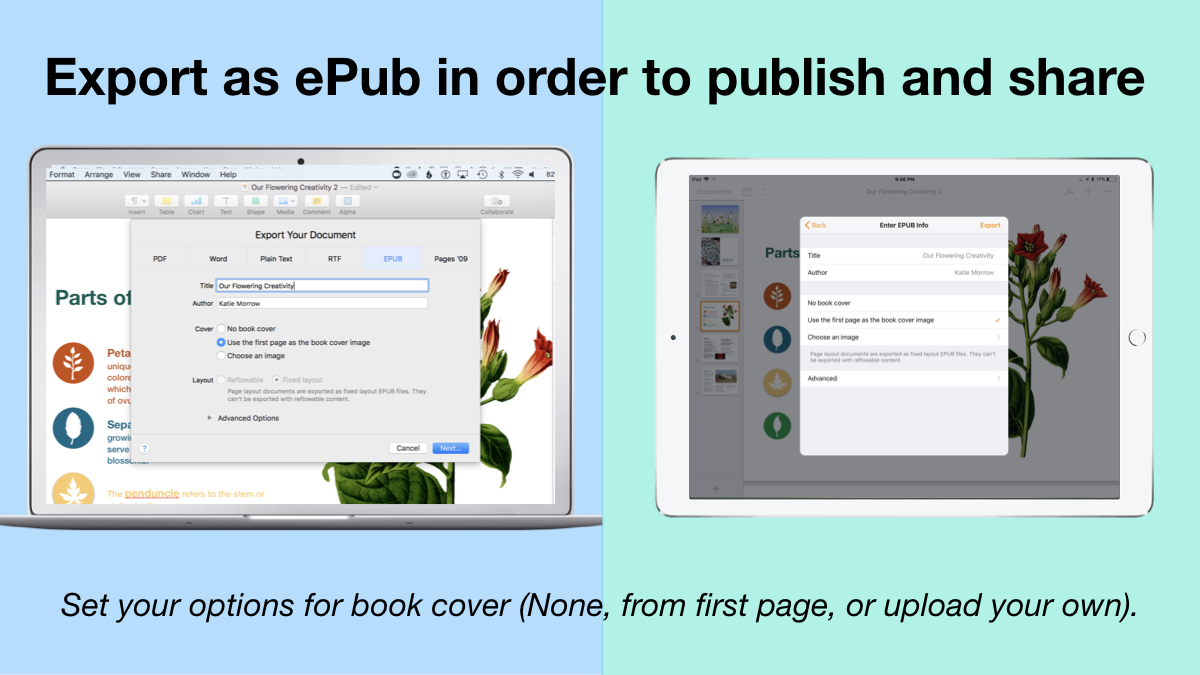
4. Export as ePub for Publishing and Sharing.

Title your book and name the author. Set your options for book cover: (None, from first page, or upload your own).
There you have it! Anyone can create a book with Pages. 


 Student books authored in Pages by Mrs. Troester's English 8 class, Spring 2018. (Science "Explainer" books for younger learners)

As educators the possibilities are endless when authoring books with Pages. To help learners experience authentic authoring, encourage them to work through all stages of the writing process. Here is a 60 second reminder of how to do so within the Apple ecosystem.


Finally, teachers can use Pages templates to help students focus more on the content of their books, and less on the the design of the pages. Whether for professional learning experiences, class books where every student authors a piece, or even shorter individual writing projects, simply create a Pages book as a starting template. Share the Pages document as a starting point and allow the learners to customize the content. Be sure to take advantage of the following features:

Media placeholders

Add image gallery placeholders from the Media button. This is a preset placeholder for the author to add an entire gallery of images.

Add text boxes and utilize Paragraph Styles

Text boxes are automatically ready as placeholders. Simply change the paragraph style and/or formatting.

Build your own photo/video placeholder

Add an image (or screenshot). Select the image and choose:
On Mac: Format > Advanced > Define as Media Placeholder

Add pages as desired and distribute to all your budding authors.  

I cannot WAIT to see what creative ideas you and your students have when creating books in Pages!


Wednesday, August 16, 2017

Do More With... iWork

Let's take a closer look at what sets Apple's iWork apps apart from other app suites by exploring a few skills and accompanying projects possible in Keynote.
  • Use Shapes Library & Drawing Tools --- to create --- Infographics
  • Use Magic Move --- to create --- Animated Learning
  • Use Links and invisible buttons --- to create --- Quiz Shows

Don't hesitate to begin with the free Starter Guides from Apple Teacher:
Next explore the big ideas outlined above:

Use Shapes Library & Drawing Tools --- to create --- Infographics


Use Magic Move --- to create --- Animated Learning


Ben Mountz's 'Magical' Presentation about Keynote's 'Magic Move'

Use Links and invisible buttons --- to create --- Quiz Shows


This iTunes U course demonstrates how to use the slide linking feature of Keynote to create "Choose Your Own Adventure" type stories.
https://itunes.apple.com/us/course/write-your-own-adventure-interactive-fiction/id1032400189
And don't forgot about this Wednesday Webinar from last spring as an additional idea generator:


Critical Literacy: Text Dependent Reading & Writing for All


Critical Literacy: Text Dependent Reading and Writing for All from Katie Morrow

Also, the accompanying Canvas course is public as well: http://bit.ly/CritLit 

Wednesday, March 29, 2017

Building Relationships: Marzano Element 39 through digital storytelling

Marzano Instructional Element 39: Understanding Students' Backgrounds and Interests

This element is key to building relationships with your students-- no matter the age level or subject you teach.

The "iAM" movie project is a simple lesson idea with variations available that any teacher could try immediately.

Ask your students to create a short video trailer about themselves-- their passions, interests, and even less surface level 'getting to know you' information. Highlighted tools of choice include Adobe Spark Video and iMovie trailers (both free or readily available apps)

For full "lesson plans" and example videos, be sure to read these two articles:
If you want to build out this lesson even further, consider looking through the resources available on iTunes from Apple Distinguished Educators about "iAM: A Brand Called ME"


either as a collection:
https://itunes.apple.com/us/itunes-u/iam/id492587276?mt=10


or as an iTunes U course (if you have access to iPads):
https://itunes.apple.com/us/course/iam-a-brand-called-me/id531749219


I referenced this same Marzano Instructional Element in my ESU8 Wednesday Webinar on iMovie + Marzano. Students are almost certain to be willing to complete this activity even outside of class time and even more importantly, you will learn new insights and deepen relationships with your learners.

 The following student projects from my classroom are an example of how you can get to know your students easily through a simple digital story. Show them to your class today and challenge your students to see how creative they can be in sharing their "personal brand."


Monday, March 27, 2017

SMART Board Games: SMART Lab Activities

The activities I mention in the video below are all games you can create in less than 5 minutes for your classroom. They are all available in the most recent version of SMART Notebook (16.2). You may need to check for updates, however. To do so simply launch SMART Notebook, and then click on Notebook > Check for Updates and Activation


Then just click on the Update button next to SMART Notebook, and enter your password to your Mac, and let it download and install. If you have troubles, feel free to ask Greg, Kevin, or myself to take a look. 

Once you’ve done this, you are all set to try out the fabulous activities inside of the SMART Lab section. Like I mention in the video, these are a great way to create classroom review games with no additional software or website sign up required. Some you would play full class on your SMART Board and others can be accessed with student devices.  My hope is that you will choose at least one of the following short videos at the page below, watch it, and immediately build a game activity for your classroom to try tomorrow. 

Let the SMART Board Games Begin!


SMART Notebook Games
 https://spark.adobe.com/page/NHDK0N6wH8hD1/ 

Wednesday, May 4, 2016

"Stepping" through Story Arcs with Shoe Stories

Learning about story arc and then applying each story element to our own writing.   
This was the goal for a recent technology-infused creative writing lesson with 4th graders.  This lesson is simple to replicate and adapt to a variety of educational purposes.  Here is how we worked through the process:

  1. Introduce the topic of a "dream shoe" to the students. Allow students to design their own sneaker using the printable from Quivervision. *Disclaimer: The printable and the Quiver app are both free. But in order to scan the shoe, you have buy an in-app purchase of $2.99 to unlock the Quiver Vol. 1 set.  Other printables from Quivervision that ARE free would work just as well, including "Dot Day" to accompany the Peter Reynolds' book The Dot.
  2. Read "Those Shoes" by Maribeth Boelts out loud. 

3. Use the Quiver app to scan student shoe creations and watch them come to life. 


4. Project the Toontastic app for the class to see and use the introductory media in the app to learn about story elements and the story arc. 


5. Discuss the story arc/story elements that exist in "Those Shoes."  Optional: Students could use these planning pages to reinforce discussion. 

6. Challenge students to use their own creative ideas to come up with a setting for their shoe, a character name, a conflict, a challenge(rising action), a climax, and a resolution/solution.These are meant to be short shoe adventures, so encourage brevity! 

7. Next, using their story elements plan, students draft their shoe story on the drafting pages. 

8. Now students create their shoe "character" and their scene backgrounds in the ToonTastic app in order to bring their adventure to life.  Students can create their shoe and or setting(s) by:
  • Taking an iPad photo of their coloring page
  • Drawing a shoe with the built-in drawing tools in Toontastic
  • Use a character template in Toontastic and add features (a car can be surprisingly similar to a shoe!)

 9. Students should add an audio recording from their story draft pages at each stage of the story arc.  Adding narration is what truly brings the story to life! Also possible is the choice of adding background music as well. 


10. To complete the project, students save the finished Shoe Stories to the camera roll. They can either Airplay the final product for the whole class to view, Airdrop to a teacher's iPad, or share in a gallery-type format where students rotate around to watch each other's stories. 


Sunday, February 14, 2016

Weather Instruments: Creating eBooks in 2nd/3rd Science

2nd and 3rd graders in Ms. Mather's Science class at Lynch Public School have been becoming weather experts. They decided to show what they have learned about scientific instruments by creating eBooks with one of my favorite apps: Book Creator. Here is a simple overview of their successful iPad learning adventure as well as easy extension ideas for additional application.

Photographing the weather while staying warm!


Building Background Knowledge


  • Ms. Mather and her class learned about Weather.  Some great digital resources include "Weather" from World Book Kids and several videos from Learn 360 - both available through your ESU 8 Media Center access. 
  • Ms. Mather decided that "weather instruments" would be a good focus and structure for the students' digital project.
  • Each student created a paper book detailed 8 scientific instruments used to study weather. Each page included the instrument name, picture, and student-created sentence.

Book Creator Basics

  • I shared an example of a student-authored Book Creator book, "A Dream Come True" (by Drew and Claire Morrow)
  • Then I showed them how to get started with a new Book Creator project and we discussed opportunities for creative content to go into their pages. 

Weather Examples in iBooks

  • Next we looked at a couple of published examples by students in the iBooks Store including:

Creation Process

  • Students quickly and easily navigated to the Book Creator app on their iPads and got started. Even with the free version of the app, students can completely author and publish one entire book.  Plans to upgrade to the $4.99 paid version were quickly made and easily jus
  • tified for future projects. 
  • Each page followed a pattern, and every page had a plan (in the students' paper books) and so students could concentrate on the creative side of publishing, maximizing their technology time.
  • For each page's images, students could choose whether to draw the weather instrument, take a photo using their iPad's camera, or find a photograph of the instrument online.  Students were encouraged to use photosforclass.com for copyright-friendly images for their books. 
  • iPads allowed for differentiation.  Some students were encouraged to add in a page about each weather instrument with either a photo or video of the student using it. 
  • All students were encouraged to record all of their book's sentences as audio recordings on each page.  We discussed how valuable this would be for someone who is blind, who doesn't yet know how to read, or even for guests at an upcoming technology fair.
Students excited to discover scientific instruments emojis!

Decisions for Delivery

  • Format (individual or group-authored)
  • Topics (jigsaw ideas, common outline, uniform topics)
  • Required Components (text + audio recordings of all text, photos or drawings, video)
  • Title (and covers)

Extension Options

  • Along with the students' study of weather instruments, this project would work well with creating a class weather forecast (using iMovie or DoInk and a green screen).
  • A global learning opportunity would be to ask each student to survey and collect data/images of the weather around the world.  After analyzing or mapping the results students could explain what they learned in their digital books.
  • Obviously, any topic could easily be interchanged with "weather" and used for an equally successful project.
  • Transfer of analog to digital
  • Don't underestimate the power of publishing to the iBooks Store.  Although these students plan to share within their school community and with the guests who come to their Technology Fair, they could also elevate their work to a global audience by leveraging the iBooks Store platform.
The weather kindly cooperated by gently snowing making for some great images for the students' books

What is the weather like in your part of the world? Using Google Earth