Showing posts with label infographics. Show all posts

Sunday, October 6, 2019

Animal Adaptations Infographics

For this year's ESU 8 Elementary Science Olympiad, activities were centered around a phenomenon. Students were scientists as they explored and experienced topics with connections to that phenomenon.

During my rotation we learned about animal adaptations and how they help animals survive. Each pair of students created an infographic in Keynote on iPad to visually share their scientific knowledge with others.

To replicate in your classroom, I recommend starting with the Everyone Can Create: Drawing guide book from Apple Books. Chapter 9 is all about infographics and contains solid examples as well as planning considerations.
Everyone Can Create Drawing
We also examined this Snowy Owl infographic example to look for critical features of an infographic as referenced in the Everyone Can Create chapter.

Next student pairs each chose an animal that interested them and researched it on World Book Online Student Edition. ESU 8 provides access to this valuable resource to all our schools and it tremendously helped with efficient and responsible research for this age group of students. Older learners could use Advanced and younger grades the Kids Edition of World Book Online. We discussed how to cite and credit the article for their researched and then navigated to the media tab to choose the image to be the center piece of their infographic. Students copied their animal's image and then opened the Keynote app to begin to create.

Prior to students arriving, I used Apple Classroom to distribute a Keynote file where I had created a custom theme with different biome backgrounds set to 50% opacity and locked in the background of the slide design options. This was mostly to maximize time for students to create.

(To make your own version simply create a new Keynote, View > Edit Master Slides, delete the existing masters other than the blank one, duplicate that and add a different background image to each, name each slide master and choose 'Done'.)

Now, all students needed to do was add a new slide (blue + on bottom left) and choose the biome that most closely matched their chosen animal. They pasted their image on the slide, resized and some used instant alpha to clean up the background. (Note: If students had access to Apple Pencil, I would encourage them to trace, color, and delete the original image in order to have a truly personalized look for the visual focus of their infographic.)


Using my example of a deer and its adaptations that I created below, we continued to go back and forth (or use Split Screen view on the iPad) between World Book Web and Keynote in order to add the following components:

  • Title
  • Name of biome
  • Map of where it lives
  • at least 3 adaptations that help it survive


Keynote skills the students learned included:
  • Adding and editing text
  • Inserting drawings
  • Using shapes, callouts, and connectors
  • Recording audio (for a few early finishers)
Also during this fast-paced 45 minute lesson we discussed critical design elements including, font, color, layout (proximity & space), and contrast. 


After all the student groups had rotated through, it was easy to collect the Keynote files through Apple Classroom and send the completed infographics back to their teachers. You can view the students' creativity and scientific knowledge in this online gallery.


Thursday, April 18, 2019

Biographical Infographics

Creative, unique, and informative- these English7 @oneilleagles students shared their biographical research on selected poets through #infographics built in #Keynote. An extra-special touch was each one's audio recording of a poem they added! @AppleEDU #EveryoneCanCreate #poetry


listen to Hope's audio added to her infographic:

To launch this project with students I first shared the definition of an infographic with some semi-biographical examples I found online.  I also created a starter example of one my favorite poets, our Nebraska poet, Ted Kooser. Using this exemplar, I demonstrated how to change the Keynote slide size to custom dimensions to create the "canvas" for the infographic. Then, using simple shapes and remixing  images from external sources, we began to lay out the poster design. Colors evoke mood and a strong background image with the opacity altered can demonstrate theme. An introduction to typography was explained in order to use fonts and formatting for emphasis. Finally, I showed students how to record an audio excerpt from one of their poet's most popular poems and encouraged students to create their oral readings for homework. 

Total class time spent on this project equalled three class periods: one day (before I arrived with their English teacher Mrs. Reinhardt-Sigler) for students to research their selected poet and complete a notes sheet, one day for how-to instruction and time to get started, and one day for completion of the creative infographics. 


Monday, July 30, 2018

Getting to Know Your Students: Back to School Activity Ideas with Keynote Shapes

Many teachers may remember the brilliant "All About Me" project shared on the Apple Teacher Learning Center.

In it, students use the Shapes Library in Keynote in creative ways to share all about themselves.

This is a wonderfully simple and adaptable activity for those first days back to school.

Below I have shared some additional prompts for a similar "Getting to Know You" activity.

You can download the Keynote file (for Mac or iPad) and adapt it even further here:
Getting to Know Students- Shape Collages_blank template for Keynote

Or see some finished examples for additional inspiration.

How do you plan to use and customize the incredible Shapes Library in Keynote to get to know your students this school year?

Wednesday, August 16, 2017

Do More With... iWork

Let's take a closer look at what sets Apple's iWork apps apart from other app suites by exploring a few skills and accompanying projects possible in Keynote.
  • Use Shapes Library & Drawing Tools --- to create --- Infographics
  • Use Magic Move --- to create --- Animated Learning
  • Use Links and invisible buttons --- to create --- Quiz Shows

Don't hesitate to begin with the free Starter Guides from Apple Teacher:
Next explore the big ideas outlined above:

Use Shapes Library & Drawing Tools --- to create --- Infographics


Use Magic Move --- to create --- Animated Learning


Ben Mountz's 'Magical' Presentation about Keynote's 'Magic Move'

Use Links and invisible buttons --- to create --- Quiz Shows


This iTunes U course demonstrates how to use the slide linking feature of Keynote to create "Choose Your Own Adventure" type stories.
https://itunes.apple.com/us/course/write-your-own-adventure-interactive-fiction/id1032400189
And don't forgot about this Wednesday Webinar from last spring as an additional idea generator:


Thursday, May 25, 2017

Creating Infographics: Drawing Tools with Pages and Keynote

The drawing tools available in Apple's creation apps are simple, yet powerful. Even a non-artistically inclined person can create digital graphics without even leaving the application they are in! Even more importantly, the act of creating infographics can lead to deeper understanding and longer-term learning for students.
Note: Whether demonstrating the drawing tools in Pages, Numbers, Keynote, or even iBooks Author, the process is the same. Use these ideas as starting points. What kinds of lessons do you teach that would lend themselves to students creating information-filled graphics?

First some teaching resources:


Creating Infographics is an excellent learning activity in content areas as well.   


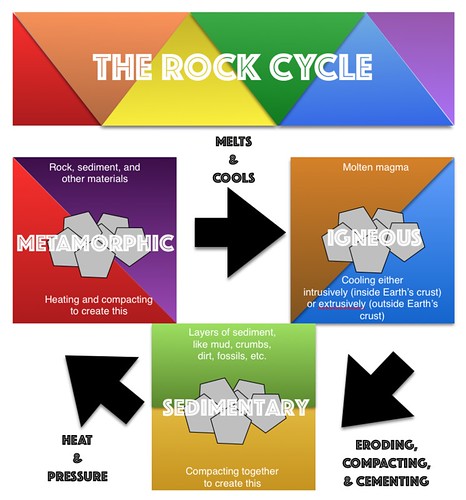
See a few student examples about the Rock Cycle from Kevin Morrow's 8th grade Science class here. Mr. Morrow commented on how visible the student creations made their understanding of the science content he had taught. In addition, he enjoyed the variety and creativity that the project allowed for. 
Rock Cycle Infographics with Pages
Click to advance slideshow through multiple student examples. Or visit the collection at https://www.flickr.com/photos/kmorrow/sets/72157682304347790 

Additional links and resources: