Friday, April 29, 2016

NPS "Geek Gathering" NETA ShareOut

It was quite the celebration at the Norfolk Public Schools Technology Center last Tuesday, April 26, 2016.  The group that gathered celebrated a final “Tech Tuesday” session for the current school year. They celebrated NPS’s own Lisa P., and all her service to the district and beyond. They celebrated new staff, eager to join the team. And most importantly, they celebrated a successful NETA Conference and the technology integration ideas that everyone who attended brought back to share with the group.

The following are a few of the highlights:

Quizlet Live
This brand-new formative assessment classroom game works with any current quizlet set of at least 12 unique terms and at least 6 students with devices. https://quizlet.com/help/how-to-use-quizlet-live
*The really cool thing about Quizlet Live is the collaboration that it fosters. Each student sees unique answer choices on his/her device; therefore teamwork is required to find the correct answer together. 


Msqrd app (Pronounced “Masquerade”)
Add creative filters, video effects, and the oh-so-popular “Face Swap” to your 30 second videos.  To “hack” the 30 second time limit, simply create multiple videos, save to camera roll, and combine in iMovie app. 


Bouncy Balls
bouncyballs.org - Monitor room noise with this website.
The louder the room, the more the balls bounce!

QR codes
QR codes continue to have numerous applications in educational settings.  
The group expressed a liking to qrstuff.com, specifically in the formatting capabilities of the code itself. Also shared was a site to create multiple QR codes (up to 100 at once) in a batch creation using QRExplore.com 
Directions and usage ideas here: https://www.instagram.com/p/BD6WG6EPdm2/ 

Padlet
The group was reminded of a great online collaborative tool that has been around for awhile known as Padlet. http://padlet.com Formally named WallWisher, the teacher creates the “bulletin board” and shares the link with anyone who wishes to contribute. There is no need for learners to sign in, simply double click on the board and add their note, complete with URL or image, if they desire.

Holograms
The group discussed using the Keynote app for student-created “hologram” videos. See an explanation here: https://slate.adobe.com/cp/JFqt5/ 
Also suggested was a free app called Holapex Hologram Video Creator
https://itunes.apple.com/us/app/holapex-hologram-video-creator/id1068434516?mt=8 Holaplex This free app allows students to create the video directly within the app, eliminating the need to duplicate and rotate it in Keynote. However it does not save the hologram video creations. 

iPad Teleprompter
Lisa demonstrated her DIY iPad teleprompter.
Her current favorite teleprompter app to use with it is PromptSmart Pro- https://itunes.apple.com/us/app/promptsmart-pro-smartest-teleprompter/id894811756?mt=8 - as you can set wpm, import from Google Drive, and it has bluetooth capabilities.


Goose Chase app
Create a scavenger hunt activity for your class with the GooseChase app.  
It was used at NETA as an ongoing competitive activity, but also has classroom potential.
Teams are able to take pictures doing challenges and submit - and then see their results on a “leaderboard.”

Google Slides
Another clever simple idea was to change the page setup in Google Slides -
File > Page Setup > Custom 8.5 x 11 in and now your slideshows are standard paper size.
Idea: Create collaborative school newsletter. 


I realize that my notes are not perfectly complete. What valuable #NETAtakeaways did we leave out? 

Monday, April 25, 2016

NETA 2016

Another NETA Conference is officially in the books, but as always, the learning doesn't stop at the Century Link Center.  Here is a quick collection of how my time was spent learning this year at NETA 2016. 

I presented three sessions this year and have linked the slides and resources for each. 

So, You Want to Publish a Book? (NETA 2016)

Learn about the process of publishing on the iBooks Store from start to finish including topic and project ideas for both teachers and students, content development in iBooks Author, and the submission and approval process from iTunes. Whether for classroom use or personal professional use, anyone has the ability to become a published author on this powerful platform!


If you thought Keynote was simply used to create slideshows, you will be amazed! See creative ideas for alternative uses of Apple's Keynote app for either Mac or iOS. Coding, animation, holograms and more... and all experiences are easy enough for beginning users. Learn and apply innovative ideas to do more with something you already have access to: Apple's Keynote.


GameShowification (NETA Ignite Talk 2016)

Learn about lessons for education gained from my personal experiences playing a TV Game Show -  Family Feud! Google slides with notes: https://goo.gl/R7aJRU 


As always, the NETA Keynotes were first-rate.  This year they featured "NebEdTalks" - shorter style Nebraska Education "TED Talks" - from 4 different presenters.  Leading off was Bob Dillon, Director of BrightBytes Institute who reminded us to slow down, notice and appreciate more.

Jennie Mageira, however, encouraged us to get motivated to let go and take risks with her talk centered around "Courageous Edventures."  
Day 2 Keynotes included Rafranz Davis on Diversity in Education and Nebraska native, Tony Vincent, who encouraged us to "Reset the Presets." 


For me professionally, there were too many valuable sessions to even begin to list. However I did see many common themes. Over and over again, we were reminded in the power of failure- both for our learners and for ourselves professionally. "Play" and gamification, both in teaching and in PD were repeated frequently. Google Cardboard and the MakerSpace/Maker movement were also a common interest for participants. Blended Learning continues to be an important topic for schools as well, and NETA provided numerous sessions and resources for it.

Additional personal highlights for me came from secondary experiences related to NETA. I participated in a BreakoutEDU session and thoroughly enjoyed the collaborative challenge of breaking out of Dr. Johnson's Lab. The educational opportunities that exist with this concept excite me for schools. Learn more at breakoutedu.com.

NETA also sponsored its first ever 5K fun run/walk. We woke up early on Friday morning to take a short run across the bridge into Iowa with fellow NETA participants. Again, sometimes it is the peripheral experiences that provide the richest learning opportunities.


To follow some of the many tweets from #NETA16, check out this Twitter archive - rich with links and commentary.

Additionally, check out sharing session notes from NPS "Geek Gathering": http://esu8tech.blogspot.com/2016/04/nps-geek-gathering-neta-shareout.html
and Westside School's NETA reflections: http://area66.westside66.org/reflections-from-neta-2016/


Wednesday, April 20, 2016

Classroom Tools for Formative Assessment

Whether the school year is beginning, underway, or coming to a rapid close, quiz and gameshow type tools are a welcome tool for any teacher's toolbox.

For this week's ESU 8 Wednesday Webinar I shared a brief message about Classroom Tools for Formative Assessment. You can view the entire 30 minute webinar here:


I created the following chart to do a snapshot side-by-side comparison of the 6 featured tools:


and it is included in the Accompanying Resources I have collected here:


However, if you are already familiar with one or more of these tools, consider individually visiting a short video for each.  With just about 3 minutes of your time, you can try a new formative assessment tool each week for the rest of the school year!

Socrative


Kahoot


Quizizz


PearDeck


Nearpod


Formative


Like I have mentioned many times, these are just a few of my favorite formative assessment tools. The wonderful thing is that we as teachers have so many options available for our classrooms, and with more being added everyday.  If you have a favorite formative assessment tool that you would like me to review and/or support implementation of, just let me know!  Until then, keep assessing FOR learning with classroom formative assessment tools.

Monday, April 18, 2016

Opportunity for Back-to-School Technology PD at ESU 8

I realize that it may seem early to start thinking about back-to-school, as we haven't even finished this school year yet! But I am just so excited about this upcoming experience that I hope everyone will get it on their calendars right now.


Quick Facts:
Technology Integration IGNITE Day
Tuesday August 9, 2016
9:00 am - 3:00 pm
ESU 8 - Neligh
Cost: Free
Register at www.esu8.org 

Wednesday, April 13, 2016

Power of Public Sharing

Lynch, Nebraska, population 236 (2013 census) to me has always been the epitome of rural community pride.  It is home to thriving businesses, genuine people, and a great getaway for anyone desiring a break from the beaten path.

Lynch Public School continues to try and push the envelope with technology amidst the realities of declining population, waning financial support, and public opinion encouraging consolidation or closure.

During the current school year Lynch Public School set a goal to host a Technology Fair with the intent of showcasing technology usage across the K-12 school. Efforts began early, and by partnering with ESU 8, teachers were provided related training and ongoing support. Teachers chose a variety of projects and tech skills to implement in their classrooms and subject areas. Plans were shared across the staff so that duplicate ideas were avoided and a wide variety of exemplars could be showcased.

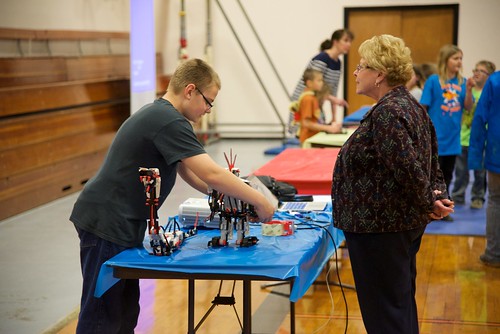
For the Tech Fair each teacher hosted a “booth.” All students were encouraged to attend and demonstrate technology skills they had gained from their classroom experiences. The entire community was invited to attend, and like any good open house, refreshments were served. :-)

On their own initiative the staff worked together to create a plan for the delivery of the experience, open to the public. They set up projector screens back to back in the middle of the gym and positioned additional tables around the outside edges of the gym. Every available projector from a classroom was moved to a table station. Some stations required speakers and/or headphones, while others just required iPads or laptops to demonstrate. 

2016_03 Lynch Tech Fair
Click the above image to view the Flickr album of photos from the event.
Some of the high level student work that was shared included:
  • iMovies of classroom activities (“A Day in the Life”)
  • Instructional videos (PE and Industrial Tech skills)
  • Augmented Reality projects (“About Me” and science…)
  • Robotics
  • iXL Math
  • Kahoot online quiz games
  • Digital books created with iBooks Author (World War II)
  • Digital books created on iPad with Book Creator app (Weather Instruments)
  • 20% Project Presentations (student-directed scientific research projects)
  • Green screen videos (music videos and more!)
  • Online portfolios (Art portfolios built with Smore)
  • SMART Board activities in English Language Arts
  • Learning journals with the SeeSaw app
  • Sketchup (3D design) 
The event was well attended. Many parents, grandparents, and additional family members were treated to a more in-depth personal exposure to each student’s learning experiences with technology. Another positive outcome was the visitors who were not necessarily relatives of the students, but simply interested community patrons. To be able to demonstrate the value of tax payers’ money and the purposeful impact the school is making for youth is an absolute win-win for all. 


I have often said that it is our personal responsibility as educators to promote the positive things that are happening in our classrooms.  Lynch Public School took on this task and more with their collective efforts around the Tech Fair.  They proved once again that no matter your school’s size, you can be an example to others— an example that I hope to see others following in the near future. Whether through online spaces, in the media, or simply inviting the community in for an experience like a Technology Fair, we all can be advocates for technology-enhanced education through the power of public sharing. 

Monday, March 21, 2016

Control your SMART Board with your iPad

Recently I have had a few teachers ask about how to use their iPad to control their SMART Board. The desire to be able to interact with SMART Notebook lessons while being mobile is with merit. If a teacher simply uses Airplay to project their iPad screen through their project, then they aren't able to take advantage of the interactive features of the SMART Board... namely in SMART Notebook lessons.  So here is one possible solution:


Use the Splashtop Remote to display everything from your laptop, but control from your iPad.  It is a free setup as long as your iPad and your laptop are on the same local network (in other words, both are at school, rather than one at home and one at school, etc.) Here is what you should do:

1) On your iPad: Download the Splashtop 2 Remote Desktop - Personal app from the App Store. Create a free splash top account and sign in. 

2) On your Mac or PC: Download Splashtop Streamer (Personal edition) from the web and install.  Sign in with your same account.

You should get an email alert that your splash top account is being accessed by a new device.

3) Back on your iPad: you should see a connection to your laptop on the main screen of the Splashtop app. 

If for some reason it has a satellite icon on it, that means that both devices aren’t signed in to the same network.  Once they are, you should see a connection without a satellite icon.  Click on that and wait a minute or so. Now you should be able to tap on your iPad and have it control all your “clicks” on your Mac. So anything in SMART Notebook will work just like you are physically standing at your SMART Board, but you can walk around the room. 


An alternative is to buy the SMART Notebook app for iPad.  It is currently $5.99 in the App Store. But then you are loading your Notebook files into it, and I’m unsure as to whether everything converts perfectly or not. I’d try the Splashtop setup and please let me know if it works or not. 

Wednesday, March 16, 2016

Writing Poetry with iPad

The following are some simple ideas for teaching poetry writing lessons with iPad apps.  All apps are free, unless otherwise noted.

Rhyming Poetry

Try the Rhymer's Block app to create a new piece of rhyming poetry. Use the Prime Rhyme app or the RhymeZone website as a reference to find rhyming possibilities. 

Acrostic Poems

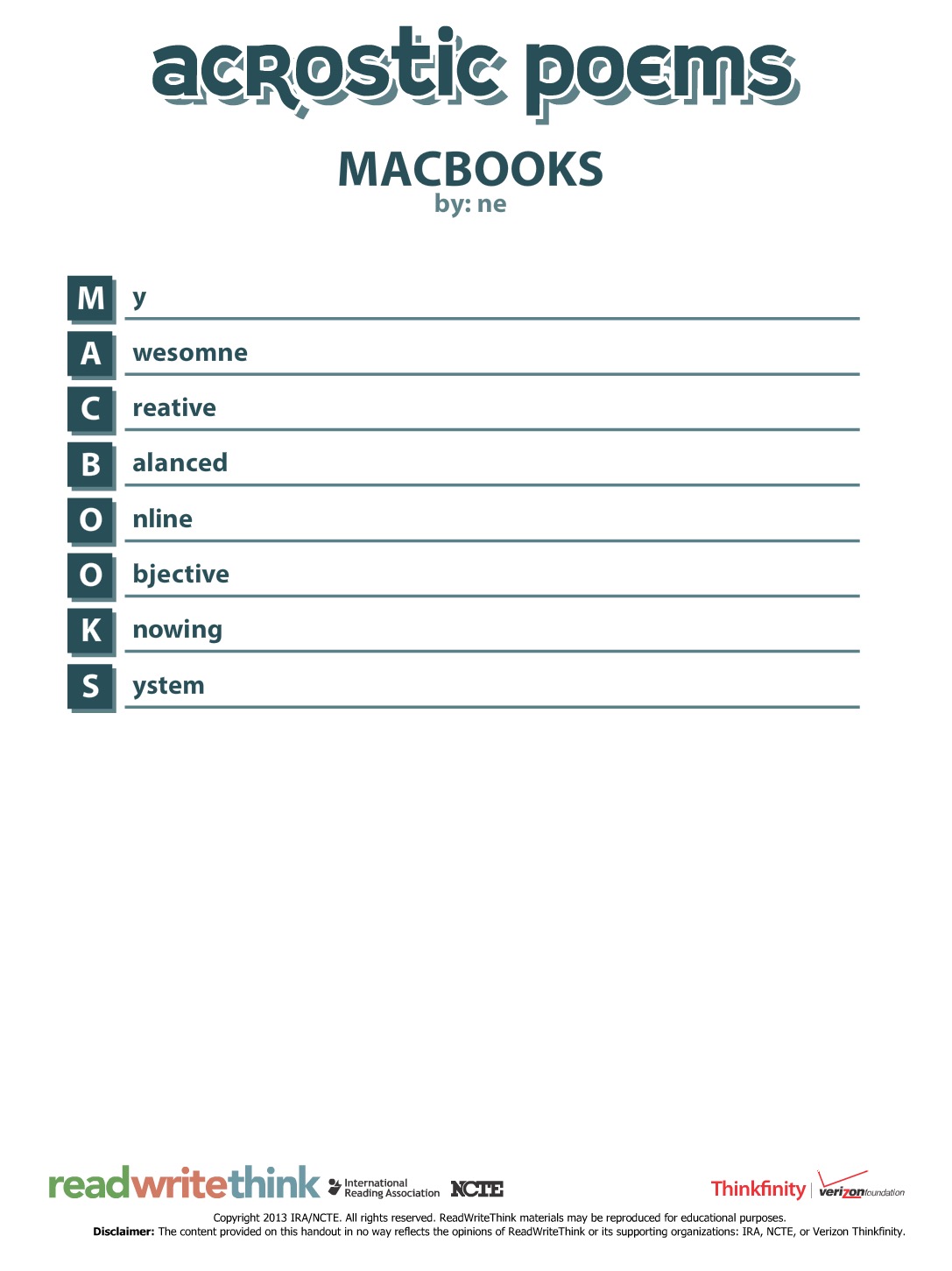
Use the Acrostic Poems app or the online interactive from ReadWriteThink to create this simple introductory form of poetry.

Name Poems

Another great introduction to poetic forms is creating a name poem. Here is one online generator to quickly prompt this kind of poetry. Also consider trying this Name Poem app.

Found Poems

"Found Poems" are formed by finding words within prose and reassembling them in order to form a new poem. Students can use an app such as FridgePoems to practice reassembling random or suggested words. Then take a piece of prose (a famous speech or passage from an essay, for example) and create a found poem with the Word Mover app.

Point-of-View, Personification, or Persona Poems

Chatterpix app- Students write a poem in first-person point of view. They then take a photo of the “narrator” (it could be an inanimate object or a historical person or a photo of anything they find online).  In the Chatterpix app they draw on where the “mouth” is and then record themselves reading their poem, making the photo come to life and look like it is speaking.  Alternatively, they could use an app such as PhotoSpeak if their poem lasts longer than 30 seconds.


Oral Fluency Poetry Reading

GarageBand app- Students record an oral version of any poem they author, reading with expression of course!  Export the audio recordings with Share > Export Song to Disk and then collect all students’ poems in a playlist, Google Drive folder, or put on a website for others to listen to.


Illustrating Poetry

Use a drawing app like Doodlebuddy or Paper by 53 and have students create a Sketchnote of their poem.  Alternately, even simply illustrating an image to go along with their poem would have value.

Syllable Structure Poems

Use this teacher-created guide for iBooks to expose students to some poetry formats with set syllable structures (including haiku, senryu, tanka, and cinquain) and then use an app like Haiku Poem to create their own.


Concrete Poetry

Students create a concrete poem built out of the shape of their words.  A favorite app for this type of poetry creation is TypeDrawing, however it is a paid app.  Another option (also not free) is the app Path On.


Diamante Poems

Use the Diamante Poem app from ReadWriteThink to create this diamond-shaped, set structure poem.


Poetic Symbols

Use the Adobe Voice app and bring poetry to life with the images in the app's symbol library.  Add your poem with a voice over and you easily have a finished multimedia project.  Note: the student example below is not necessarily a poem, but gives you an idea of how simple to use the app is.

Poetry Video Remix

Create an iMovie from a published poetic work. The following example created by students is a interpretive remix of the poem "Nothing Gold Can Stay."

Figurative Language

Find examples of figurative language in modern day song (like the example below, created by students with the Keynote app), in books, or other existing works.  Students can create a compilation of figurative language examples or simply author their own.


Additional iPad apps for exploring poetry with students:


What additional ideas for teaching poetry writing with iPad do you have? Please share in the comments below!