West Holt 4th graders are at it again! Turning their writing skills into six-shot stories with Clips. This year they took on the added charge of creating their stories about relevant science topics from a list Mrs. Shirley Rossman gave them.
They used a storyboard/planning document to help them plan their video stories, making sure they used six unique camera shots when filming.
Finally, they brought their Six Word Stories to life using Clips on the iPad.
Our first task was to find a cover image, change the opacity, and use the drawing tools in Pages to create original artwork. When the tracing image was deleted, students were so proud of their digital artwork!
Of course, capturing "selfies" for their "Author the Author" page was pretty fun, too!
Next the students added content from their research on each of the pages, enhancing with copyright-friendly photos, shapes & drawing and even image galleries.
The final step was to record audio. Some students recorded a reading of their entire "report" while others recorded bits of text from multiple pages.
Students exported as ePubs and "handed in" their books via Apple Classroom, and Mrs. Krutz collected them all. To share with family and friends, I posted the epub files on a webpage and also made a screen recording video of each book, so that an audience without an iPad could still hear the students' voices.
All in one day's work in a second grade classroom!
NETA recently announced their 2019 Contest results and several winners reigned from ESU 8.
Congratulations to the following:
Ashley Pischel, O'Neill High School
Teacher: Kevin Morrow
Jiya Chaudhari, O'Neill High School
Teacher: Kevin Morrow
Julia Emme, O'Neill High School
Teacher: Mike Peterson
Award winners will be recognized at NETA's Spring Conference, held March 28-29, 2019 in Omaha, NE. A complete list of the 2019 NETA Contest Winners can be found here.
O'Neill Elementary's 3rd Grade Reading class, under the direction of Mrs. Julie Pistulka along with help from Katie Morrow, ESU 8, recently published their latest version of an annual community history research project. This year, the creative student authors compiled and shared their information in the form of an alphabet book.
Using a Pages template, each "letter" consists of 3 pages:
1) a stanza of poetry and photo gallery on the topic
2) written report from student research
3) student-created artwork
template created in Pages and distributed to student iPads via Apple Classroom
Students added audio narration for all the text with the newest feature of Pages books - Audio Recordings.
For 5th and 6th graders this was their first exposure to GarageBand. As we didn't have enough time for them to work through the Everyone Can Create Music book in its entirety, I gave a brief overview of how Live Loops worked and let them experience the power of music creation via discovery mode.
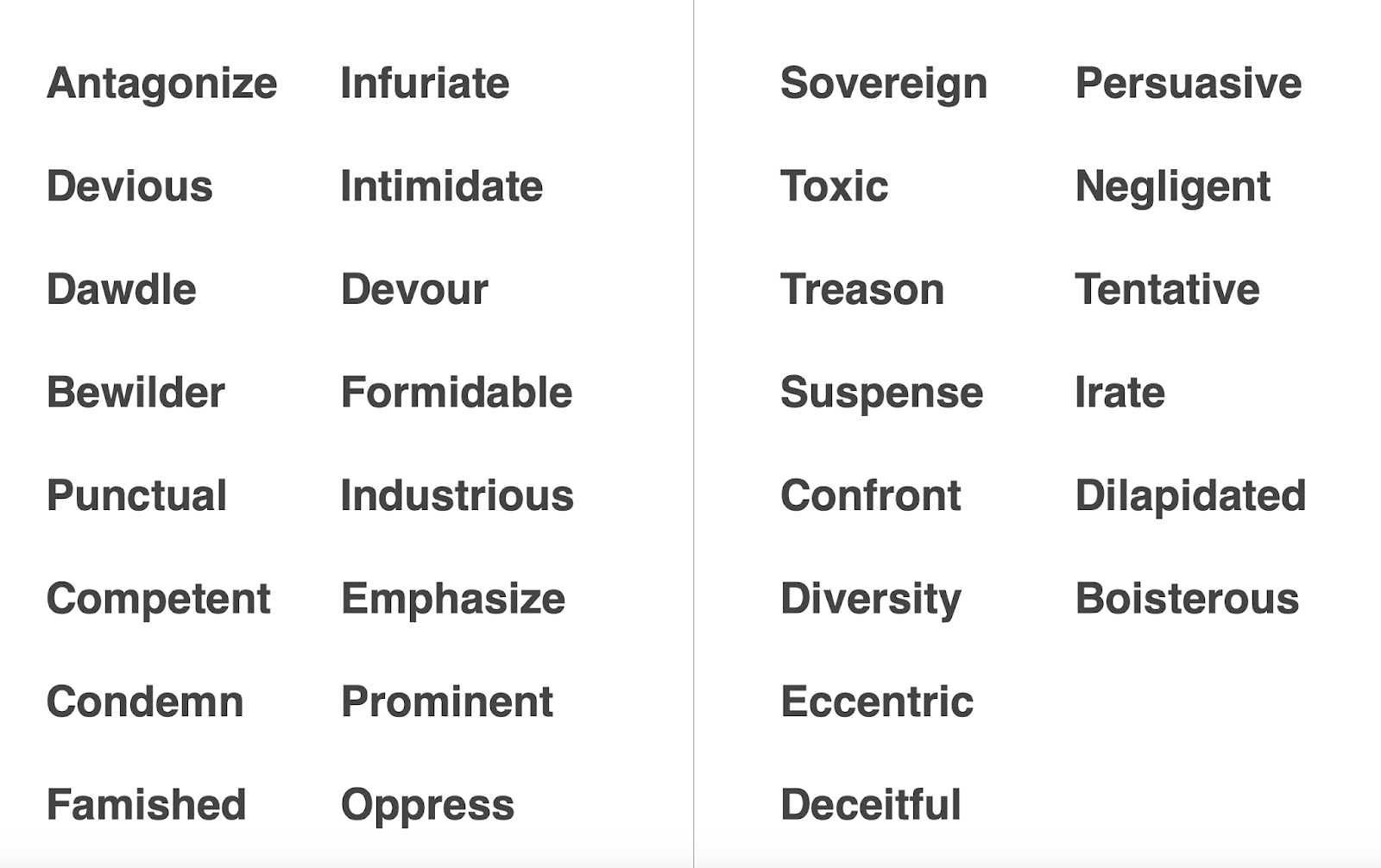
Then they randomly selected words from a "power words" vocabulary list I pre-made. Their task was to create a "Live Loops Lexicon" where the feel of the music helped bring to life the meaning of the word. After their 30-60 seconds of music was created and captured, they added a microphone track and voice recorded their word, its definition, and usage in an original sentence.
Alternately named "Lingo Jingles" this was a simple activity that introduced students to the power of creating music with GarageBand, while at the same time broadening their vocabulary!
On September 25, 2018, school teams from across the state of Nebraska assembled to promote digital citizenship. Six different sites (Fremont, Beatrice, Columbus, O'Neill, Kearney, Scottsbluff) hosted teams of 4-6 students along with at least one adult (teacher, administrator, and/or parents). Using Zoom video conferencing, all sites could hear from the speakers of the day. Also built in was time to interact locally and work as a school team on an action plan to bring the information back to their community.
The following are resources used during the Digital Citizenship Symposium so that others may access and learn as well.
Karen Haase, Attorney of Education Law, KSB School Law
Don't Forget that Digital Citizenship Week is October 15-18. I have a feeling that many of this year's Student Teams will be making a positive impact in their schools during that week (and hopefully all year long!)
Every year on September 8, International Literacy Day is celebrated. In conjunction with this year's celebration, AppleEDU has launched a #PagesBookChallenge. The challenge is simple. Create a digital book with your students in Apple's Pages app (free creation app for Mac or iPad). Then, simply tweet a short synopsis of the book along with its cover and tag #PagesBookChallenge.
To encourage all educators to participate here a series of short tips and recommendations for creating digital books with Pages.
1. Begin a new Pages project using the Books templates.
Tip: Use Portrait templates for primarily text-based books (so that the reader can resize the text and the pages will adjust accordingly) and Landscape for fixed layout books (where you control the exact design and layout of the pages and the reader cannot adjust).
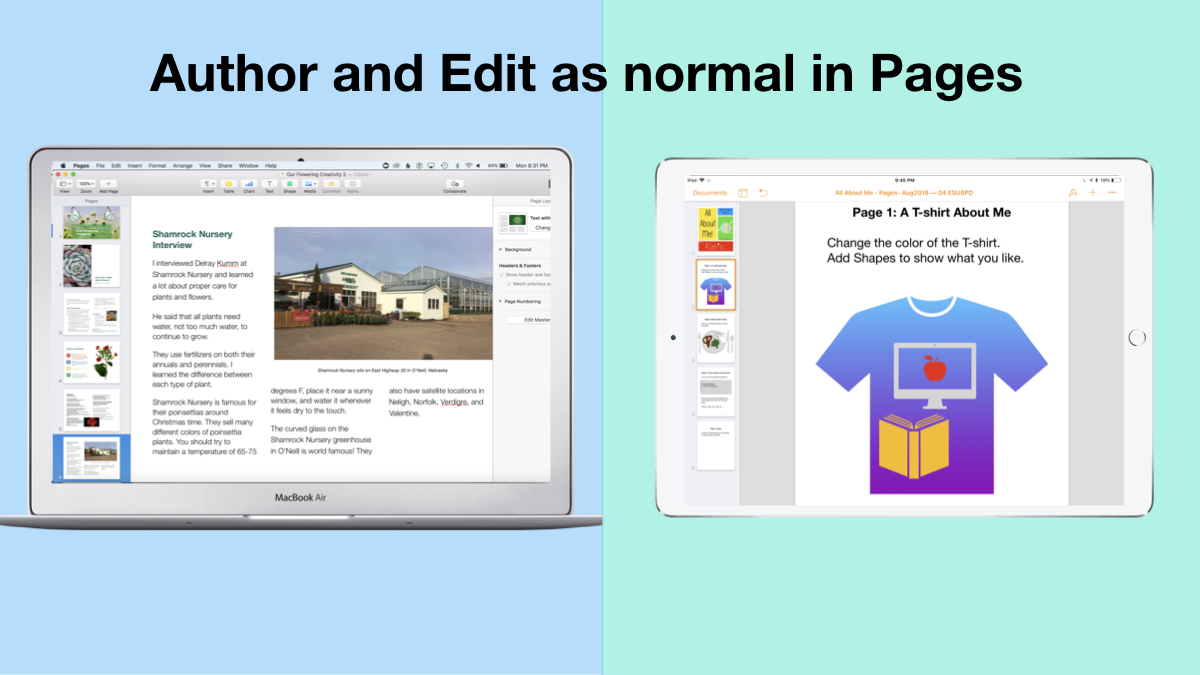
2. Author and Edit as you normally would in the Pages app.
The beauty of the iWork suite, in my opinion, is its simplicity and consistency across apps. Unleash your creativity!
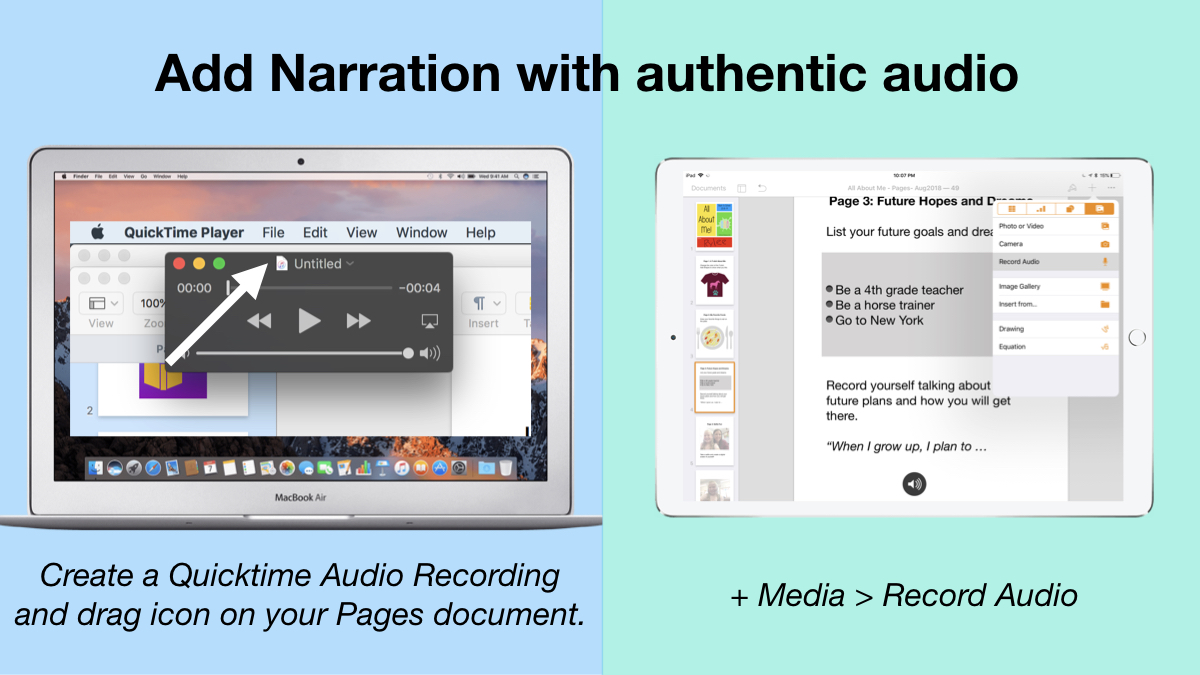
3. Add narration with authentic audio
On Mac: Create a Quicktime Audio Recording and drag icon next to filename onto your Pages document. On iPad: Tap the +, choose the Media tab, and Record Audio, then add to page.
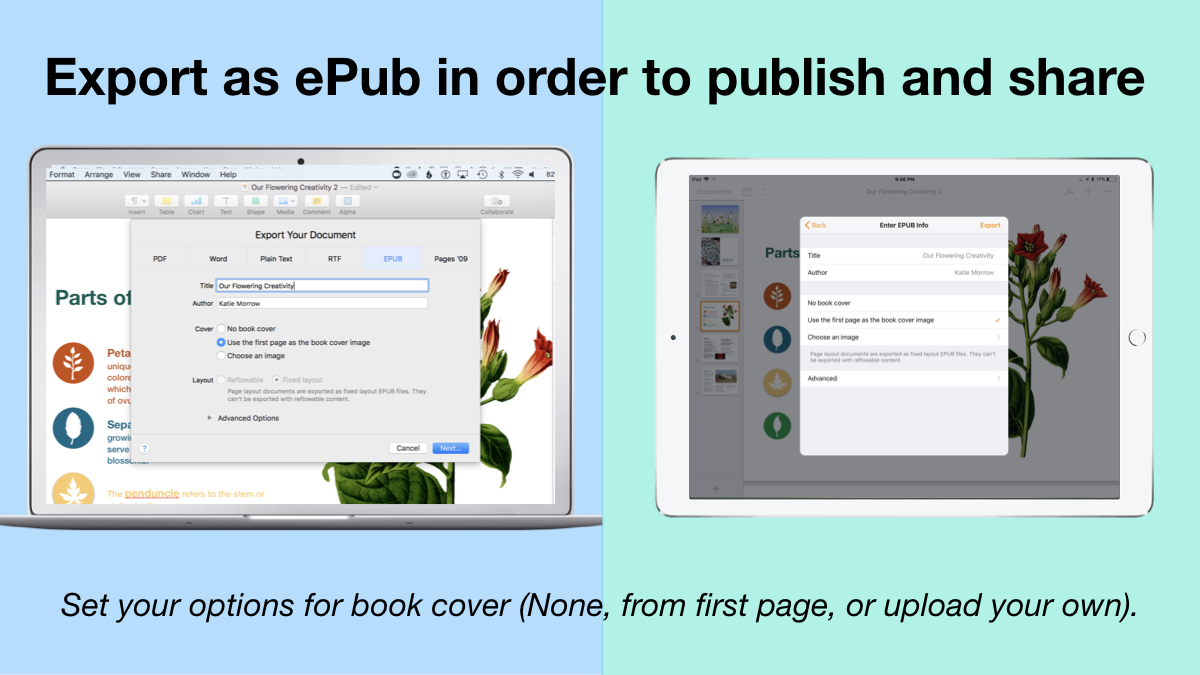
4. Export as ePub for Publishing and Sharing.
Title your book and name the author. Set your options for book cover: (None, from first page, or upload your own).
There you have it! Anyone can create a book with Pages.
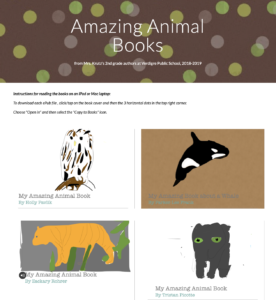
Student books authored in Pages by Mrs. Troester's English 8 class, Spring 2018. (Science "Explainer" books for younger learners)
As educators the possibilities are endless when authoring books with Pages. To help learners experience authentic authoring, encourage them to work through all stages of the writing process. Here is a 60 second reminder of how to do so within the Apple ecosystem.
Finally, teachers can use Pages templates to help students focus more on the content of their books, and less on the the design of the pages. Whether for professional learning experiences, class books where every student authors a piece, or even shorter individual writing projects, simply create a Pages book as a starting template. Share the Pages document as a starting point and allow the learners to customize the content. Be sure to take advantage of the following features:
Media placeholders
Add image gallery placeholders from the Media button. This is a preset placeholder for the author to add an entire gallery of images.
Add text boxes and utilize Paragraph Styles
Text boxes are automatically ready as placeholders. Simply change the paragraph style and/or formatting.
Build your own photo/video placeholder
Add an image (or screenshot). Select the image and choose: On Mac: Format > Advanced > Define as Media Placeholder
Add pages as desired and distribute to all your budding authors.
I cannot WAIT to see what creative ideas you and your students have when creating books in Pages!